Wavetables
A wavetable is a short waveform: one cycle of 2 to 64 volume levels, from silence (0) to full volume (15). Draw a wavetable and play it from an instrument step to give a channel a different tone, such as a sine or triangle. It plays at the note's pitch regardless of its length.
A sample is a recording played once or looped from a point you choose. A wavetable instead repeats a single cycle of the chip's volume levels. A song can have up to 127 wavetables, numbered separately from samples, starting at 01.
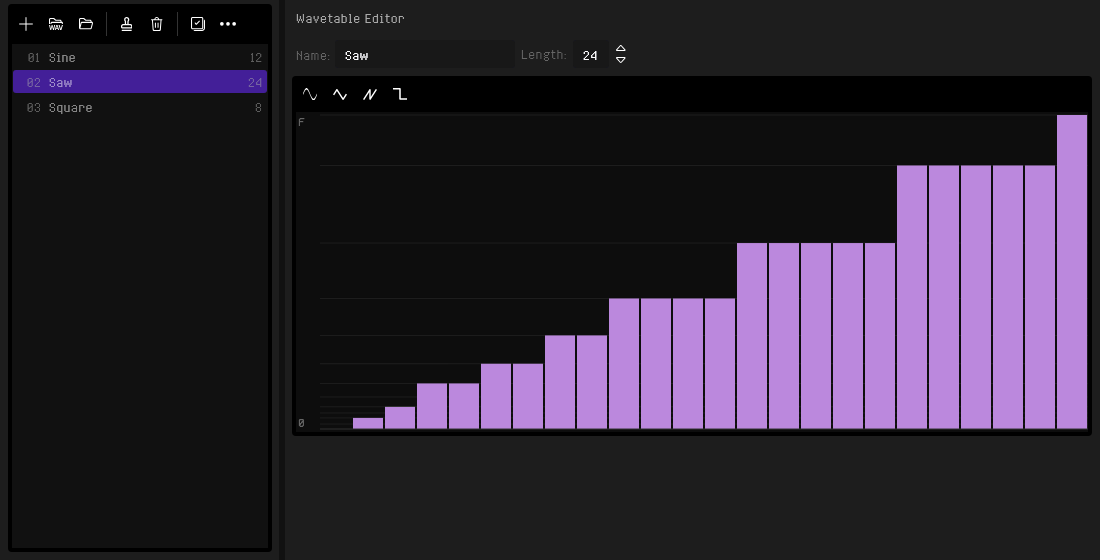
Wavetable List
Select the Wavetables tab or press Ctrl+6 to open the wavetable list. The tab is hidden in Novice mode. When Wavetables is off in the Song properties, the tab is dimmed and cannot be opened; hover over it to see where to switch it on.
Each item shows:
- Number in hex, from
01: the number you type into a step's Wave column to play it - Name
- Length, the number of levels in one cycle
The list has no 00 OFF entry: a step plays no wavetable by leaving its Wave column empty.
Drag a wavetable to reorder it. To move several, select them with Ctrl+click or Shift+click and drag one: they move together in list order. Instrument steps are renumbered to keep playing the same wavetables, and one undo restores the list.
Double-click a wavetable to hear it, the same as the Preview Wavetable button.
While the list has keyboard focus, the QWERTY piano keys (lower octave Z–M, upper octave Q–U) play the selected wavetable at the key's note, so you can hear it across the keyboard while you draw. With Stop note preview on key release on, the note stops when you let go of the key. Ctrl+R moves you to the editor's Name box to rename the selected wavetable.
Toolbar
| Button | Description |
|---|---|
| Add Wavetable | Add a new wavetable at the end of the list, containing one cycle of a sine at 12 levels, and select it (Ctrl+Shift+N) |
| Import WAV | Make new wavetables from WAV files containing one cycle of a waveform, each named after its file (see Importing a WAV File) |
| Open File | Add the wavetables saved in one or more .rht files at the end of the list (Ctrl+Alt+L) |
| Duplicate Wavetable | Add a copy of the selected wavetable, its levels and length alike, at the end of the list (Ctrl+D) |
| Delete Wavetable | Remove the selected wavetables from the song (Del). Steps that played a later wavetable are renumbered so they keep playing it, and steps that played a deleted one are left playing none. If any step plays one of them, you are asked to confirm first. In the list the focus stays on the wavetable below, so you can press it again |
| Select All | Select every wavetable |
| Select Unused | Select the wavetables no instrument step plays. Load-and-replace and save are on the right-click menu |
| Preview Wavetable | Play the selected wavetable at C-4, at full volume (/), until you stop it, however the preview length is set |
| Stop Preview | Stop the preview that is playing, whichever tab started it (Esc). Available only while something is playing. See 5. Main Window |
Wavetables that no instrument step plays are dimmed in the list.
While the song plays, the wavetables you can hear are highlighted in the list, so you can see which wavetable each channel plays. A wavetable on a muted channel is not highlighted. Turn the highlights off with View > Highlight Playing Items, a setting the instrument, arpeggio, vibrato, sample and wavetable lists share.
The wavetables the steps of the currently selected instrument play are marked in the corner of their number, the same mark the pattern editor puts on the rows that play that instrument. The marks follow the selected instrument. Hover over a mark to see what it means.
Select several wavetables with Ctrl+click and Shift+click, or with Select All and Select Unused on the toolbar, to delete them together. The editor shows the first of them.
Importing, opening, adding, duplicating and deleting can all be undone. When the song already has 127 wavetables, the buttons that add one are unavailable.
Context Menu
Right-clicking a wavetable opens a context menu with Replace with File..., Save As..., Duplicate and Delete. They are described under Wavetable List in the context menu chapter.
Wavetable Files
A wavetable can be saved as an .rht file and loaded into any song. The file contains its name and levels. Save As... writes a file, Open File adds wavetables from files, and Replace with File... replaces the wavetable you right-clicked. The shortcuts work while the wavetable list has keyboard focus.
Importing a WAV File
Import WAV makes a wavetable from a WAV file containing a single cycle, such as a waveform made for a wavetable synthesizer. The whole file becomes one cycle: up to 64 frames give one level each, and longer files are reduced to 64 levels. Trim the file to one cycle first. The recording is scaled to the full volume range, from silence to the loudest level.
You can import several files at once. Each becomes a new wavetable, in list order, and one undo removes them all. If a file cannot be imported, RhYMe tells you why and imports the rest. Files beyond the 127-wavetable limit are left out.
Wavetable Editor
When a wavetable is selected, the right panel shows the Wavetable Editor.
| Control | Description |
|---|---|
| Name | The wavetable's name, up to 64 characters. A rename undoes in one step |
| Length | How many levels one cycle has, from 2 to 64. Lengthening it adds silent levels at the end, and shortening it removes the last ones, so what you have drawn stays where it is. The pitch does not change with the length, but the timer fires once for every level, so a longer wavetable takes more of the Atari ST's processor time and plays less in tune on high notes |
| Shapes | Sine, Triangle, Sawtooth (rising) and Square replace the levels with one cycle of that shape, at the current length |
Below them is the level graph, one column for each level of the cycle, from silence at the bottom to the loudest level at the top. Each level is drawn as loud as it sounds, so the quiet levels lie close together near the bottom, and a waveform that rises evenly in sound, such as a sawtooth, is drawn with straight slopes. Lines across the graph mark the levels, except some of the quietest, which lie too close together.
Drag across the graph to draw: each column you pass is filled up to the first line above the pointer. Levels without a line cannot be drawn, but the shape buttons still use them. A whole stroke undoes in one step, and so does a length change or a fill.
Shorter or longer
More levels draw a smoother shape. Fewer levels sound rougher but need fewer timer ticks, which matters on high notes when you export to the Atari ST.
Playing a Wavetable
To play a wavetable from an instrument, set a step's timer Mode to 4 (Wavetable, shown as WVT) and type the wavetable's number into the step's Wave column, the last column of the Timer group. See Playing a Wavetable in the instrument editor chapter, and Mode 4 — Wavetable for how the pitch and the volume work.
A few things to keep in mind:
- The step's volume, the channel volume and the instrument's volume make the wavetable quieter. Each takes the same number of steps from every level, so a quieter wavetable flattens toward silence rather than shrinking evenly.
- When the step's tone mode also plays the square, the square is tuned to the wavetable's cycle so the two do not beat against each other. On high notes with many levels a slow beat can remain; fewer levels help.
- A wavetable keeps playing through the following steps while they stay in wavetable mode, and a new note on the same wavetable continues from where the cycle had reached. What happens when a step switches to another wavetable is the instrument's Transition setting, under Wavetables on its Parameters tab: Continuation, the default, carries the cycle on from where it was, Restart begins the new wavetable from its first level, and Synchronized lets the old wavetable finish its cycle first.
- An instrument file (
.rhi) stores the wavetables its steps play. Loading it into another song adds them to that song's wavetables, reusing identical ones the song already has. - The export says so when a song passes the limit of 127 samples, wavetables and volume copies together.