Dialogs
This page documents RhYMe's dialogs: the settings dialogs, the other dialogs. The export dialogs, and the questions asked before an export, are described in 15. Exporting.
In a list of options, the option a setting has until you choose another is marked (default), so you can always find your way back to it.
A web page has no separate windows, so each dialog opens as a panel over the page. The rest of the page is dimmed and takes no input until you close the panel.
Audio Settings
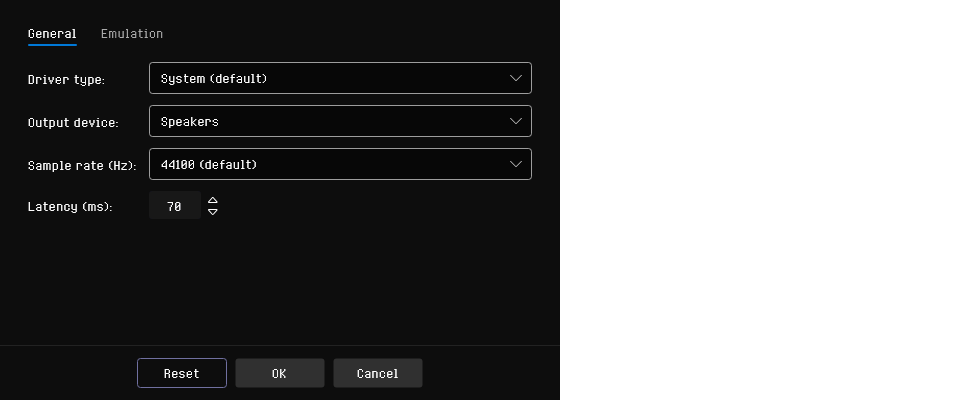
Opened from Options > Audio Settings. The General tab sets up the audio device, and the Emulation tab sets how the chip is rendered.
General tab:
| Setting | Description |
|---|---|
| Sample rate (Hz) | The rate the chip is rendered at: 22050, 44100 (the default), 48000, 88200 or 96000. Your tune sounds the same at every rate; a lower rate uses less processor time. With ASIO the list shows only the rates your interface runs at, with its current rate selected; to change it, use the driver's Configure... panel |
| Latency (ms) | How much audio is buffered ahead, from 10 to 500 ms in steps of 10; the default is 200 ms, since the browser draws the editor and plays the song at the same time. Lower values reduce delay but may cause glitches on slower systems. |
RhYMe plays through the output the browser uses. If playback stutters, raise the Latency. A higher latency delays only the notes you play while the song is playing: starting and stopping the song is heard at once whatever the latency.
Emulation tab:
| Setting | Description |
|---|---|
| Output stage | Authentic - Hatari (default) sounds like Hatari: close to the chip's own signal, with the machine's slightly softer falling edges and without inaudible rumble or aliasing. Unfiltered gives you the chip untouched, for a recording you will process elsewhere. Applies to playback and to WAV and MP3 export, from the next time the audio device is opened |
OK applies the settings, restarting the audio if something is playing.
Reset puts every setting on both tabs back to its default, after asking. Nothing changes until you click OK, so Cancel keeps your settings as they were.
MIDI Settings
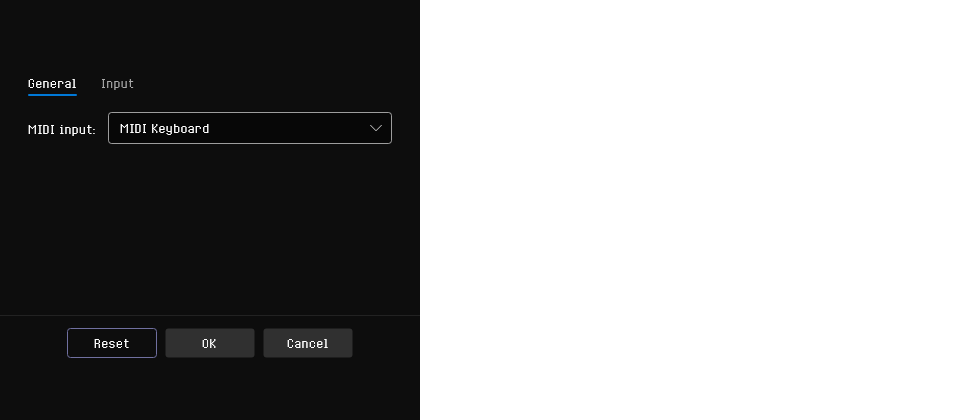
Opened from Options > MIDI Settings. The General tab selects the MIDI input device for note entry, and the Input tab sets what your playing does to the note you hear.
| Setting | Description |
|---|---|
| MIDI input | The MIDI input device, or (None) to turn MIDI input off. All MIDI channels are listened to, and notes go to the selected tracker channel. With no device connected, the list is disabled and shows (None). To silence a keyboard for a while, turn off MIDI note input on the MIDI toolbar instead |
Input tab
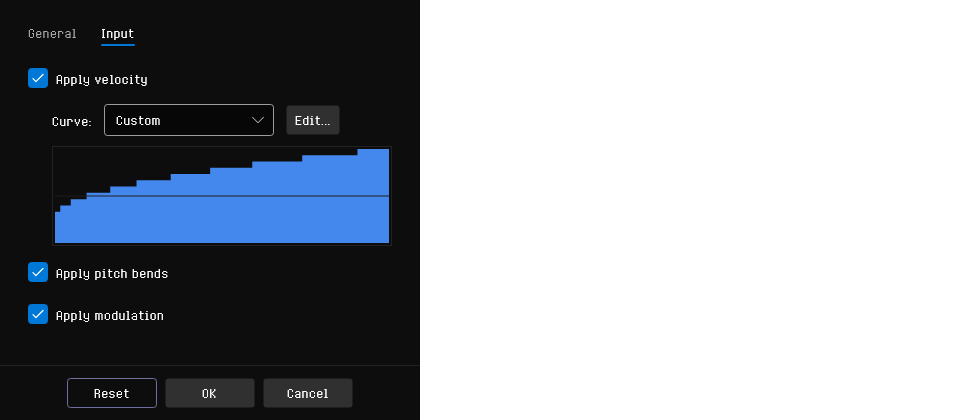
These settings change what you hear while previewing. Apply velocity starts off, and Apply pitch bends and Apply modulation start on.
| Setting | Description |
|---|---|
| Apply velocity | How hard you strike a key sets how loud its preview sounds; a gentle press is quiet, not silent. Off, every preview plays at full volume |
| Curve | How a strike becomes a volume; see below. Available while Apply velocity is on |
| Apply pitch bends | The pitch wheel bends the note you are hearing, by up to two semitones either way. Turn it off if your wheel does not rest exactly in the middle |
| Apply modulation | The modulation wheel adds vibrato to the note you are hearing, deeper as you raise it. It is the same vibrato the pattern effect gives a note |
A curve has a shape and a weight. Logarithmic makes loudness follow your strike, as a piano does. Linear moves the volume level evenly with your strike. The weight sets how much of the chip's range the curve uses: heavy all of it, medium the upper half, light the upper quarter.
| Curve | What it gives you |
|---|---|
| Logarithmic (heavy) | The full sweep, with loudness tracking your hand. The gentlest touch you can send is the quietest the chip goes |
| Logarithmic (medium) | The same feel over half the range: expressive, and a soft touch never loses the note |
| Logarithmic (light) | The same feel in a quarter of the range, for the lightest touch of all |
| Linear (heavy) | Every volume level is used, so a soft strike is very quiet indeed. Dramatic, and easy to lose a note under |
| Linear (medium) | An even response over half the range |
| Linear (light) | Only the top quarter of the levels, so velocity colors the sound without deciding whether you hear it. The default |
| Custom | The curve you edit yourself in the curve editor |
The graph below the list shows the selected curve, from your softest strike on the left to your hardest on the right, each bar as tall as the volume that strike plays at. To fit the curve to your keyboard, click Edit... beside the list, or double-click the graph. The curve editor opens on the curve shown, with a step for every velocity, and you shape it with points, smooth curves or the pen, just as you would an instrument's steps. Apply makes your curve the custom curve and switches the list to Custom, so editing a ready-made curve starts from it. Your curve is kept when you choose another one, so choosing Custom again brings it back. As with the other curves, the lowest level you can give a velocity is still audible.
These settings take effect at once, so you can play your MIDI keyboard with the dialog open and hear each choice as you make it, or each curve as you apply it. Cancel puts them back as they were. They change only what you hear: notes are written to the pattern the same way whatever the velocity or the wheels.
Plug-and-play
If no MIDI device is in use and you connect a controller while RhYMe is running, RhYMe selects it automatically. A device already in use is never replaced.
Reset puts every setting on both tabs back to its default, after asking, and forgets a curve you have edited. The Input settings change at once, as when you change them yourself; Cancel puts every setting back as it was.
MIDI input works in browsers with Web MIDI, such as Chrome, Edge and Firefox, but not in Safari. The first time RhYMe looks for MIDI devices, the browser may ask whether the page may use them; until you allow it, no device is listed.
General Settings
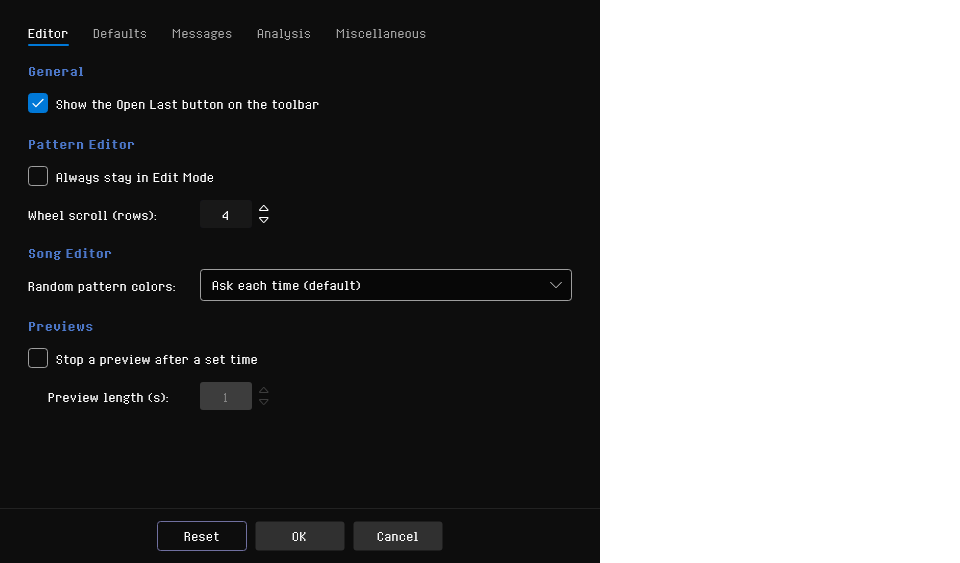
Opened from Options > General Settings, or from Warning Settings... in the pattern toolbar's warning menu, which opens it on the Analysis tab. The dialog has four tabs: Editor, with the groups General, Pattern Editor, Song Editor and Previews; Defaults, with what new songs and imported samples start with; Messages, with the messages RhYMe shows without being asked; and Analysis, with the song warnings.
General
| Setting | Default | Description |
|---|---|---|
| Show the Open Last button on the toolbar | On | Show the Open Last button on the main toolbar while there is a song to reopen. Right-click the button and choose Hide Open Last Button to clear this setting. Open Last Song on the File menu works either way. Offered only in browsers that offer Open Recent |
Pattern Editor
| Setting | Default | Description |
|---|---|---|
| Always stay in Edit Mode | Off | Keep the pattern editor in Edit Mode for good. The Edit Mode button is hidden from the pattern editor toolbar, Enter no longer turns Edit Mode off, and the grid no longer marks whether Edit Mode is on. Turning the setting off leaves Edit Mode on until you turn it off |
| Wheel scroll (rows) | 4 | How many rows the pattern editor moves for each notch of the mouse wheel, from 1 to 16. It applies whether the wheel scrolls the view or moves the cursor. The instrument step grid and the arpeggio and vibrato grids always move one row per notch |
Song Editor
| Setting | Default | Description |
|---|---|---|
| Random pattern colors | Ask | What Randomize Color does in the song editor with several patterns selected: Ask each time, Same color for all, or A different color each (see Random Pattern Colors Question) |
Previews
| Setting | Default | Description |
|---|---|---|
| Stop a preview after a set time | Off | Give a preview that would otherwise play on an end, once its loop has had its time |
| Preview length (s) | 1 | How long the looping part of a preview may sound before it stops, from 1 to 60 seconds. Available while the setting above it is turned on |
Most previews stop by themselves, but an instrument with a loop point, a looping arpeggio or vibrato, and a sample keep sounding until you stop them. With Stop a preview after a set time on, such a preview stops once its loop has sounded for the set time. Everything before the loop plays in full, and a preview that ends on its own is never cut short.
Some previews are left alone:
- a note you are holding down, which ends when you let go of the key;
- a preview through an arpeggio or vibrato table, which plays until you stop it;
- a sample previewed on the Samples tab, which always plays whole;
- a step preview you asked to loop, with Ctrl+click on the Preview Step button or the wave preview, or with Ctrl+/;
- Preview Instrument Looped and Preview Step Looped on the menu next to the preview buttons (see Looped Previews).
Defaults
What new songs and newly imported samples start with. In Novice mode the tab shows only Author and Composer.
| Setting | Default | Description |
|---|---|---|
| Effects mode | Trailing | The effects mode new songs start with. Songs you open keep the mode they were saved with, and you can change the current song's mode on the Song tab |
| Resample rate | 8084 Hz | Resample rate assigned to newly imported WAV samples. Chosen from the same list of rates offered in the sample editor. (Replacing an existing sample's audio keeps that sample's own rate.) |
| Author | (empty) | The author filled in for every new song, so you do not have to type your name each time. Leave it empty to start new songs without an author. Songs you open keep their own author. |
| Composer | (empty) | The composer filled in for every new song. Leave it empty to start new songs without a composer. Songs you open keep their own composer. |
Messages
The messages RhYMe shows without being asked, each of which you can turn off.
| Setting | Default | Description |
|---|---|---|
| Show a tip on startup | On | Show a usage tip in a dialog each time RhYMe starts. Also toggled by the checkbox in the tip dialog itself |
| Show import report after importing a file | On | Show the import report dialog after importing a song file (.aks) |
| Warn about features and changed settings hidden in Novice mode | On | List the hidden features a song or instrument uses when you open or load it in Novice mode, and the hidden settings that are not at their defaults when you switch to Novice mode (see Hidden Features Warning) |
Analysis
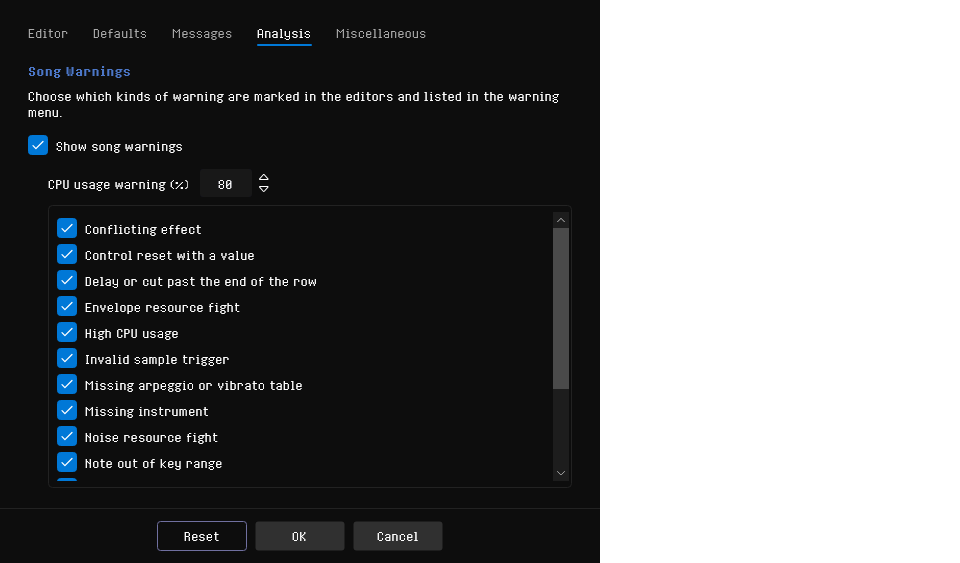
| Setting | Default | Description |
|---|---|---|
| Show song warnings | On | Show warnings at all. Turn it off to hide every kind at once; the switches below keep their settings for when you turn it back on |
| CPU usage warning (%) | 80 | Warn about the rows where the Atari ST replay is estimated to take more than this share of a frame, from 1 to 100 (see High CPU usage) |
| Song Warnings | All on | One switch for each kind of warning, in alphabetical order, in a list you can scroll. Hover a switch to read what that kind of warning means |
RhYMe points out the places in your song that will not play the way they are written. If a kind of warning does not matter to you, for example a repeated effect you wrote on purpose, clear its switch: its warnings disappear everywhere, in every song, until you check it again. To hide all warnings for a while, clear Show song warnings instead. A kind of warning added in a later version of RhYMe starts out switched on.
Reset puts every setting back to its default, after asking. Nothing changes until you click OK. To reset the toolbar toggles or the layout, clear the recent files or forget the remembered export destinations, use Reset Settings.
Reset Settings
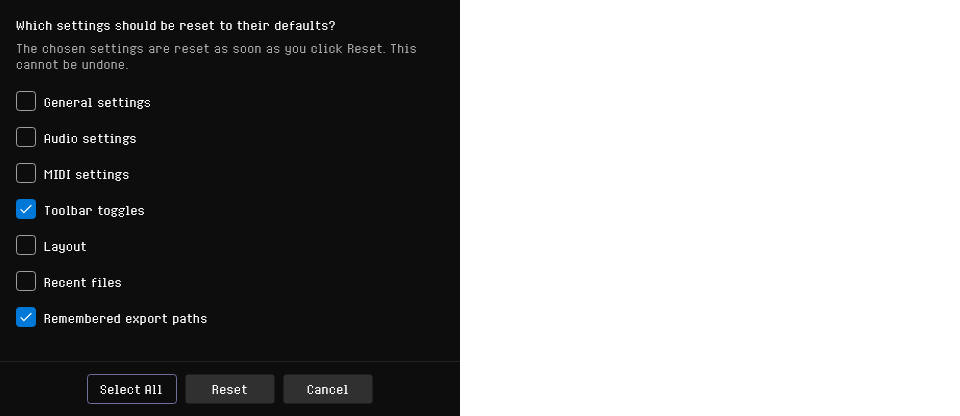
Opened from Options > Reset Settings.... Check what you want to put back to its defaults and click Reset. Nothing is checked when the dialog opens, and Reset is available once something is. Select All checks every choice, to reset everything at once.
| Choice | What it resets |
|---|---|
| General settings | Every setting in General Settings |
| Audio settings | Every setting in Audio Settings |
| MIDI settings | Every setting in MIDI Settings |
| Toolbar toggles | Every toggle on the toolbars and in their view options; see Toolbar Toggles |
| Layout | The layout, the size of every panel and which panels are collapsed, as View > Reset Layout does |
| Recent files | The list in File > Open Recent, as Clear Recent Files empties it; the files themselves are kept |
| Remembered export paths | The destination RhYMe remembers for every song and playlist, and for every kind of export; see Where an Export Is Written |
The checked settings are reset as soon as you click Reset, and this cannot be undone. Cancel resets nothing.
Startup Tips
Help > Tips shows a Did you know? dialog with a usage tip.
Crash Recovery
While a song has unsaved changes, RhYMe saves a backup copy every 30 seconds. The backup is removed when you save the song, open another song or a demo song, or close RhYMe normally. If RhYMe finds a backup when it starts, the last session ended unexpectedly, for example in a crash or a power cut, and RhYMe asks whether to restore the unsaved work before the main window opens.
- Restore (or
Enter) opens the unsaved work as a song that has never been saved, so Save asks you where to put it. It stays marked as unsaved whatever you undo. - Discard permanently deletes the backup, and RhYMe starts with a new song. No key does this, so the work is never lost by accident.
- Decide Later (or
Escape) keeps the backup and starts with a new song. RhYMe asks again the next time it starts, even if you save or close normally in between.
If the backup cannot be read, RhYMe says so, discards it and starts with a new song.
The backup is kept in the browser rather than in a file, for that browser only. Closing or reloading the page does not count as closing RhYMe normally, so a song with unsaved changes is offered back the next time you open the page.
Hidden Features Warning

When a song you open or import in Novice mode uses features that Novice hides, RhYMe lists them, for example arpeggio tables, samples or achromatic instruments. Demo songs are the exception: opening one never brings up this warning. It does the same when you switch to Novice mode with such a song open, and when you load an instrument that uses them, for example with its own sample, a wavetable or a key range.
Instruments taken from the instrument browser get one warning when you close the browser. The song still plays and exports these features; you just cannot see or change them in Novice mode.
Settings work the same way: a setting Novice hides keeps working. So when you switch to Novice mode and some of the settings it hides are not at their defaults, for example Auto-instrument or Record OFF notes turned off, a Hidden Settings warning lists them. It counts only the settings that change how RhYMe behaves, not those that change how it looks.
- Switch to Expert brings the hidden features or settings into view.
- Stay in Novice (or
Escape) keeps Novice mode. - Check Don't show this again to stop the warning for good. You can turn it back on in General Settings.
Import Report
After importing an Arkos Tracker 3 song, RhYMe lists what the import changed or left out; Copy copies the report. Check Don't show this again to stop it.
Merge Song
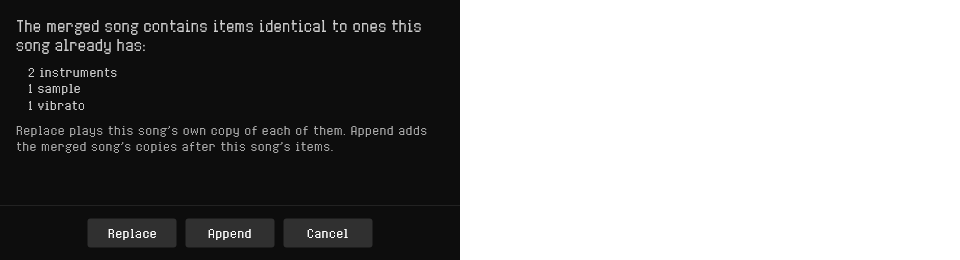
File > Merge Song..., hidden in Novice mode, adds another song to yours: its instruments, samples, wavetables, arpeggios, vibratos and patterns come after your song's own, and its arrangement plays after yours.
When the other song contains items exactly identical to ones your song already has, RhYMe lists how many of each and asks what to do with them. An instrument is identical when it would be saved to the same instrument file: the same name, settings and steps, playing identical samples and wavetables.
- Replace (or
Enter) has the merged song play your song's own copy of each, so it is not added a second time. - Append adds the merged song's copies after your song's own items.
- Cancel (or
Escape) merges nothing.
A song with large samples takes a moment to read; while it is read, the window is dimmed and a spinner turns in its middle. When nothing is identical, the songs are merged right away. If the result would pass a song's limit of instruments, samples, wavetables, arpeggios, vibratos, patterns or arrangement slots, a message lists each limit and nothing is merged. Your song keeps its own settings, such as its title, pattern length and speed, and a single undo removes the whole merge.
The merged song starts as it would on its own:
- When it uses another tick rate than your song, its speeds, swings and row lengths are converted to your song's tick rate, so it keeps its tempo. Its other effects run at your song's tick rate.
- A reset (
RS) on each channel of its first row stops whatever your song left playing. - When your song ends at another speed than the merged song's, a song speed effect (
SSnn) with the merged song's speed goes on that row too.
When the first row has no room for these effects, they go in a pattern of one row added before the merged song, which goes on to it after one tick. A message tells you about the tick rate conversion and the speed effect or the added pattern. See File Menu.
Release Notes
Help > Release Notes shows the release notes of every version up to the one you are running, newest first. The window opens straight away and says the release notes are loading until they appear, and you can scroll through the notes that are shown while the rest are still being added.
Instrument Browser
See Instrument Browser.
Replace Instrument
Makes the notes that play one instrument play another: in the selected rows or the cell under the cursor in the pattern grid, in the patterns of the selected slots in the song editor, or in the whole song from the instrument list. Choose the instrument under Replace: and its replacement under With:.
Custom Color
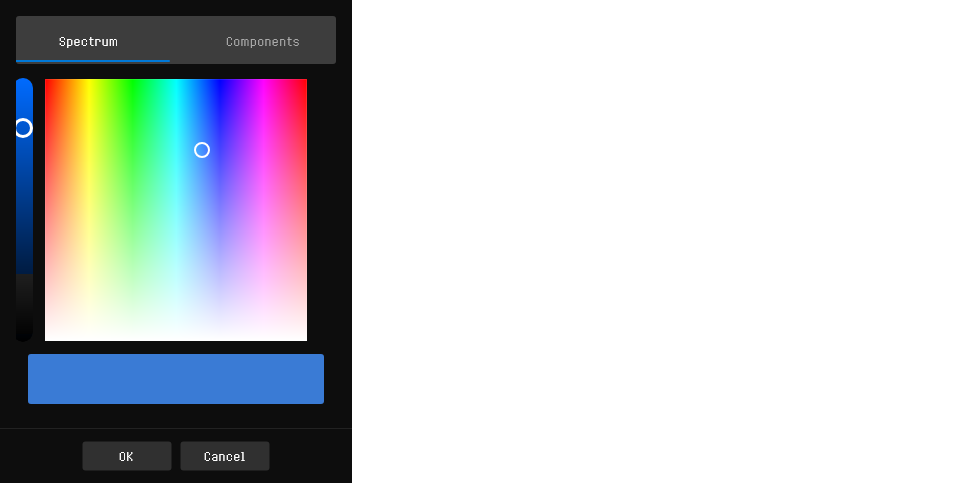
Opened with the Custom Color button or menu item wherever an instrument, sample or pattern color is chosen, to pick any color rather than a preset one: on the Spectrum tab by dragging, or on the Components tab by its red, green and blue, hue, saturation and value, or hex value.
Random Pattern Colors Question
Randomize Color with several patterns selected asks whether they should share one random color or each get a different one. Check Remember my choice to stop the question; Random pattern colors in General Settings changes it again.
Delete Instrument
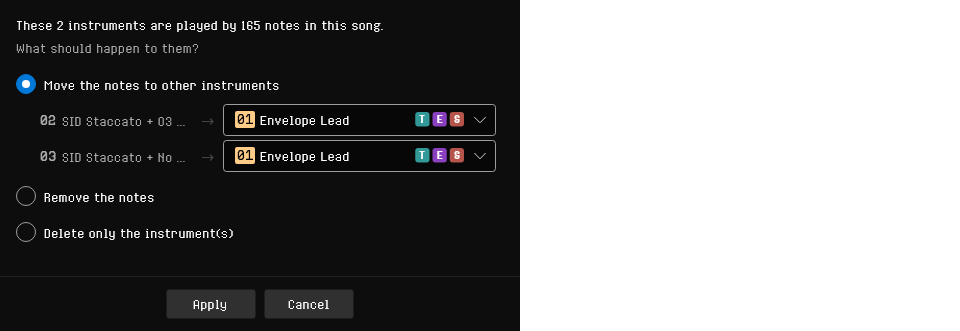
When you delete an instrument your song plays, RhYMe first asks what should become of its notes. An instrument nothing plays is deleted without asking.
The dialog shows what is being deleted and how many rows of the song play it; when only some of the instruments you are deleting are played, it says how many. Then it offers three answers:
| Answer | What happens |
|---|---|
| Move the notes to other instruments | The notes stay and play the instrument you pick. Each deleted instrument the song plays gets a separate line, with its number and name, so you can send each one to a different instrument or all to the same one |
| Remove the notes | The notes go with the instrument, leaving those rows empty. Any effects on those rows stay |
| Delete only the instrument(s) | The notes stay and point at an instrument the song no longer has, so a warning appears for each of them, and you can fix them later |
Press Apply or Enter to go ahead, or Cancel or Escape to change nothing. The whole change is a single undo step.
If you are deleting every instrument, the first answer is unavailable. Apply does nothing while a line has no instrument chosen.
Clean Up Instrument
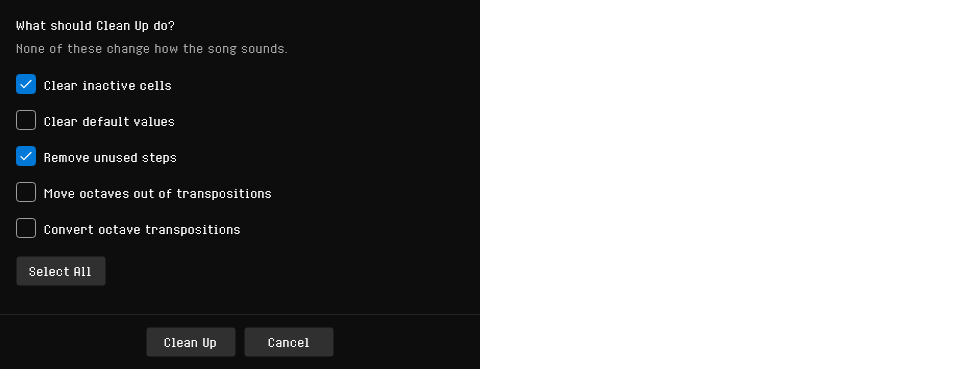
Opened from the Clean Up button on the instrument editor's step toolbar. It tidies the instrument on show without changing how your song sounds, and asks which kinds of tidying to do:
| Choice | What it does |
|---|---|
| Clear inactive cells | Puts every cell that has no effect on its step back to its default value, and removes the silent steps at the end. The only choice checked the first time the dialog opens |
| Clear default values | Empties every cell that has the same value as an empty cell, such as an octave, transposition or pitch of zero. A period or noise period of zero is kept, since it plays differently from an empty one |
| Remove unused steps | Plays your song through and removes the steps after the last one any note reaches, the same steps Mark Unused Steps fades. An instrument your song does not play keeps all of its steps. A long song takes a moment to play through; while it does, the window is dimmed and a spinner turns in its middle |
| Move octaves out of transpositions | A transposition larger than an octave moves its whole octaves to the octave column: +14 becomes an octave of +1 and a transposition of +2 |
| Convert octave transpositions | A transposition of a whole number of octaves becomes an octave instead: +24 becomes an octave of +2 |
The octave choices work on the square, envelope and timer sides alike and keep every note where it was; octaves beyond 8 either way stay in the transposition. If removed steps contained the loop start, the loop is cleared, and at least one step always remains.
The dialog remembers your last choices. Select All checks every choice, and then becomes Reset, which clears them all again.
Press Clean Up or Enter to go ahead, or Cancel or Escape to leave the instrument as it was. Clean Up is unavailable while nothing is chosen. Everything the clean up changes is a single undo step.
Draw Curve
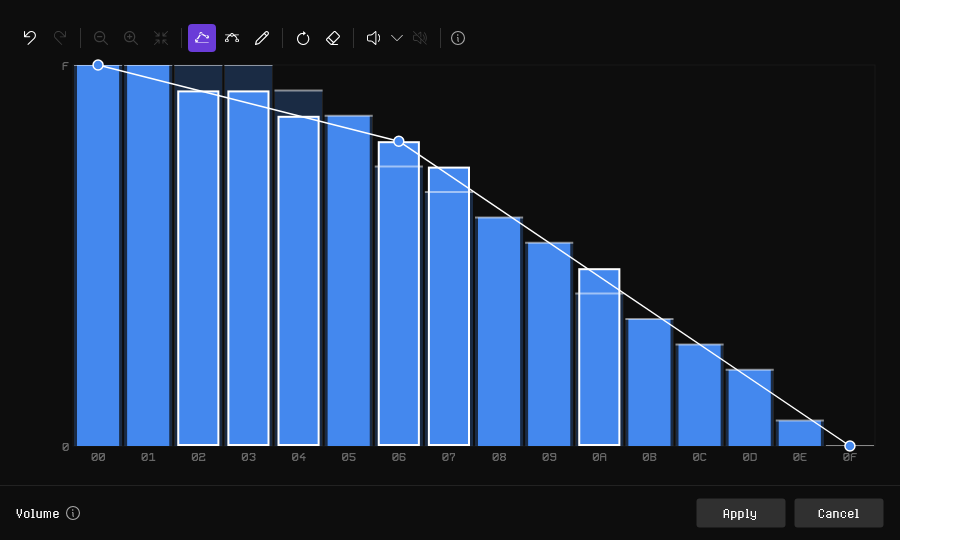
The curve editor draws a step parameter of an instrument, an effect in the pattern, or the MIDI velocity curve, as a curve. See Drawing a Curve, Drawing an Effect Curve and MIDI Settings.
Transform
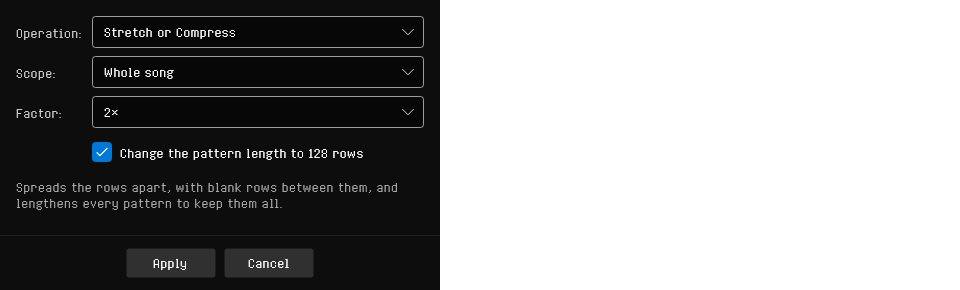
Opened with Transform… on the Edit menu, the pattern grid's right-click menu or the song editor's right-click menu, or with Ctrl+G. It applies an operation to a range of pattern rows, whether or not Edit Mode is on.
| Choice | What it does |
|---|---|
| Operation | What to do to the rows. Stretch or Compress is the only operation so far |
| Scope | Which rows: Selection (offered while you have a block selection), Track (the track the cursor is in), Pattern (the pattern on screen), Selected song slots (each pattern the selected slots play, once) or Whole song (every pattern). From the song editor it starts on Selected song slots, otherwise on Selection when you have one, or Pattern |
| Factor | 4×, 3× or 2× spreads the rows out, 1/2×, 1/3× or 1/4× draws them together. It starts on the factor you used last |
Stretch or Compress moves every row by the factor, counting from the first row of the scope. At 2×, a blank row opens up between each row, and rows pushed past the end of the scope are dropped. At 1/2×, the rows move together and the bottom half of the scope is left blank; two rows landing on the same row are combined, with the upper row's values taking priority. A selection moves whole rows in every track it covers.
With Whole song chosen, a check box offers to change the pattern length by the same factor, and starts checked: stretching 64-row patterns by 2× then makes them 128 rows long, so nothing is dropped. It is unavailable where the new length would not be a whole number of rows, or would be longer than 128 rows.
The song speed stays as it is, so a stretched passage plays more slowly. To keep the tempo after a 2× stretch, halve the speed.
Press Apply or Enter to go ahead, or Cancel or Escape to close the dialog without changing anything. The whole transform is a single undo step.
Deleting What the Song Uses
When you delete a sample, a wavetable, an arpeggio table or a vibrato table that the song uses, RhYMe asks first and says what will happen:
- instruments that played a deleted sample are left without one, and the sample triggers (
Y) that played it are turned off; - steps that played a deleted wavetable are left playing none;
- arpeggio table (
QNnn) and vibrato table (QVnn) effects that played a deleted table are turned off.
When you delete several at once, it says how many of them the song uses.
- Delete (or
Enter) deletes them. - Cancel (or
Escape) deletes nothing.
Something the song does not use is deleted without asking. Either way the deletion can be undone. Instruments have a separate dialog; see Delete Instrument.
Export Confirmations
The questions RhYMe asks before an export writes its file are described under Export Confirmations.
About
Help > About, or the RhYMe logo on the main toolbar, shows RhYMe's version, credits and license, and the libraries it is built on.
Error Dialogs
When something fails, such as opening, importing or exporting a file, an error dialog says what went wrong and why, in words you can select and copy into a bug report.
Unsaved Changes
When an action would replace a song with unsaved changes, such as opening another song or closing RhYMe, RhYMe asks whether to Save first, go on with Don't Save, or Cancel.