Getting Started
This guide covers launching RhYMe and creating your first pattern.
System Requirements
RhYMe needs no installation in the browser, but it asks more of the computer, since the browser draws the editor and plays the song at the same time:
| Component | Minimum |
|---|---|
| Computer | A desktop or laptop computer; RhYMe does not start on phones and tablets |
| Browser | A recent version of Chrome, Edge, Firefox or Safari |
| Processor | 64-bit with two cores; a faster one plays with less delay |
| Memory | 4 GB |
| Display | 1920 × 1080 at 100% zoom, with the browser window at full size |
| Connection | An internet connection to open the page; the editor is downloaded when you open it |
| Audio | The sound output the browser plays through; you cannot choose another device from RhYMe |
| Input | A keyboard; a mouse is recommended; a MIDI keyboard works in Chrome, Edge and Firefox, but not in Safari |
RhYMe is silent until you first click or press a key on the page, since browsers do not let a page play sound before that. It starts with a longer delay than the desktop version (200 ms rather than 70 ms), so that playback does not stutter while the editor is drawn; if it still stutters, raise the Latency in Audio Settings. You notice the delay only on notes you play while the song is playing: starting and stopping the song, and a note played while nothing else sounds, are heard at once, and the playback position follows what you hear. In Chrome and Edge, saving or exporting asks where to save the file; other browsers download it to your downloads folder instead. Your settings and a backup of unsaved work are kept by the browser, for that browser only.
What Differs from the Desktop Version
The browser version uses the same editor and plays songs the same way, but some features are unavailable or work differently.
Not offered in the browser:
- Open Recent, Open Last Song and Reload Song from Disk, in browsers other than Chrome and Edge, since a file the page opened there is a copy that is gone after the page is reloaded (see Opening and Saving Files)
- Recent playlists: Open Recent lists songs only, and the playlist's File menu has no Open Recent
- File > Exit: close the browser tab instead
- Check for Updates, since the page is updated with each release and there is nothing to install (see Help Menu)
- Dropping files onto the window: use File > Open, or the load and import buttons of each list, instead
- The choice of audio output device and the MP3 quality setting
- Show in Folder in the export dialogs and in a playlist
- The usage statistics, and the Miscellaneous tab of General Settings
Different in the browser:
- Dialogs open as panels over the page, with a close button beside their title; the rest of the page takes no input until you close them (see 18. Dialogs)
- Files are opened through the browser, and saved where the browser lets you choose, or downloaded (see Opening and Saving Files)
- The instrument browser cannot show your folders: it asks for a song first and lists its instruments (see Instrument Browser)
- MIDI input needs a browser with Web MIDI, which Safari does not have, and the browser may ask whether RhYMe may use your MIDI devices (see MIDI Settings)
- Starting asks no questions and shows no tip, and the editor starts in Expert mode; choose another level from View > Experience Level (see Launching RhYMe)
- Your settings and the backup of unsaved work are kept by the browser, and closing or reloading the page counts as an unexpected end, so unsaved work is offered back the next time (see Crash Recovery)
- The manuals open in a new browser tab
Opening RhYMe
Open RhYMe's page in your browser: the editor is downloaded and starts, with nothing to install.
Launching RhYMe
RhYMe opens with a new, empty song ready for editing.
The editor starts in Expert mode, with the whole editor in view. To work as a Novice, with the advanced features left out, choose that level from View > Experience Level (see Experience Level). To hear what RhYMe can do, open one of the demo songs from File > Open Demo Song, then press Space or the play button in the toolbar to play it, and Space again to stop it. Click or press a key on the page once before you expect to hear anything. Usage tips are under Help > Tips.
The Main Window
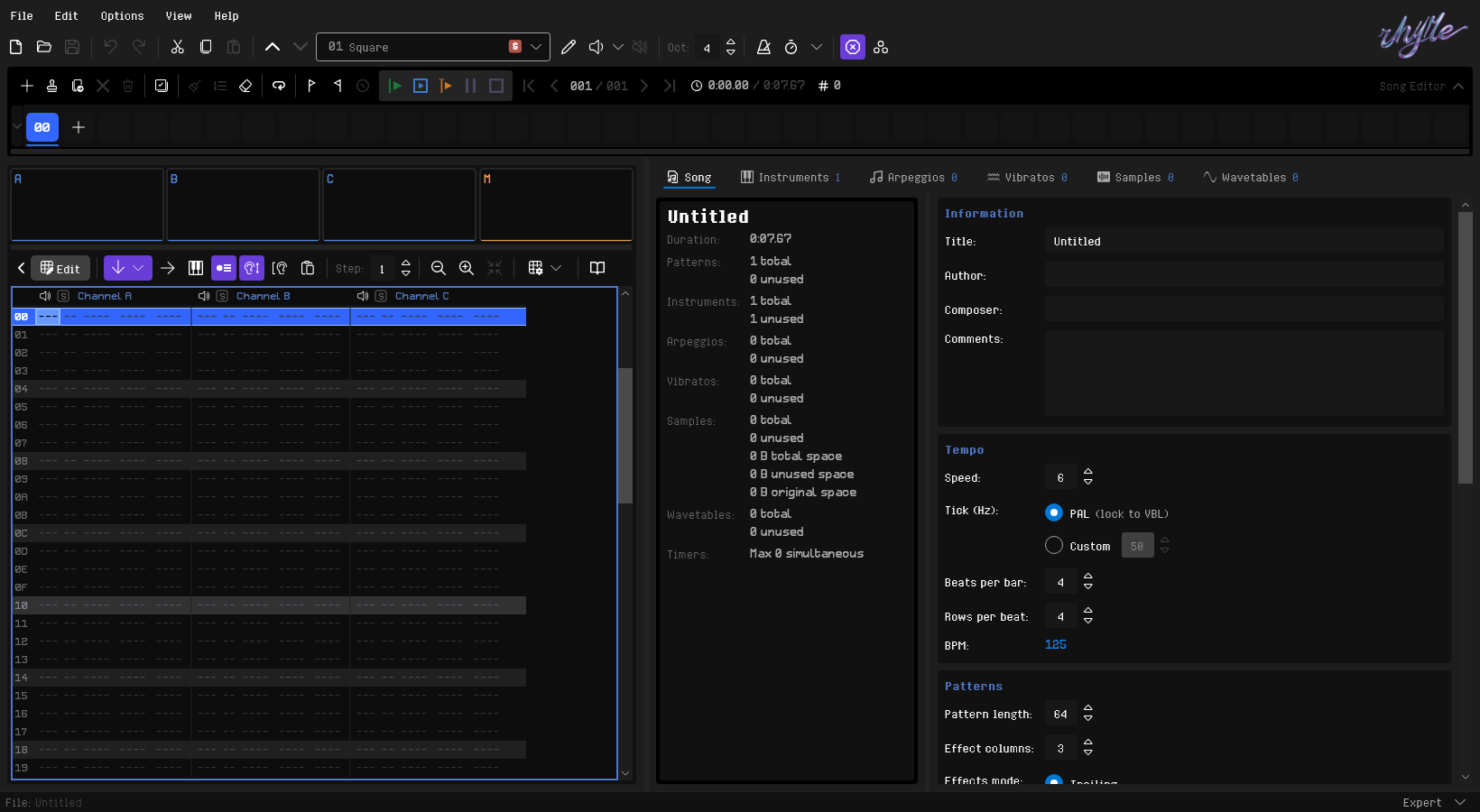
The pattern editor, where you enter notes, fills the left of the window. Beside it are the Song, Instruments, Arpeggios, Vibratos, Samples and Wavetables tabs, and on the right the editor for the selected tab. Above them are the menu bar, the main toolbar and the song editor, where you arrange patterns into a song; the status bar is at the bottom. Novice mode hides the Arpeggios, Vibratos, Samples and Wavetables tabs. See 5. Main Window for details and the other layouts.
Keyboard & Mouse
Nearly every action has a keyboard shortcut, and most are also available through menus and toolbars.
Keyboard Shortcut Reference
Press Ctrl+Shift+K for the Keyboard Shortcut Reference, a list of every shortcut. Start typing a key, action or area to filter it.
See 4. Keyboard & Mouse Input for the conventions behind the shortcuts and mouse actions — what the modifier keys generally mean, how the mouse wheel behaves, and what a click, double-click, or drag does in different parts of the application.
Your First Sound
Before entering notes, you need an instrument. A default instrument, named "Square", is created and selected for new songs:
- Click the Instruments tab in the middle panel
- Type a note on your QWERTY keyboard to hear a preview: try pressing Z, X, C, V, B, N, or M
To hear what RhYMe can do, open a song that comes with it from File > Open Demo Song (see File Menu). For ready-made instruments, click Browse Standard Library on the instrument list's toolbar or press Ctrl+Alt+K, listen to them, and add the ones you like (see Instrument Browser).
Entering Notes
Edit Mode
Typing and pasting into the pattern grid require Edit Mode; menu commands such as Transform work without it. Toggle it with Enter in the pattern editor or with the Edit Mode button in the pattern toolbar.
To enter notes into the pattern:
- Press
Enterto enable Edit Mode - Use the arrow keys to move the cursor to the first row of Channel A
- Press note keys to enter notes. The QWERTY keyboard maps to a two-octave piano layout:
Upper octave, sharps     2  3     5  6  7
Upper octave           Q  W  E  R  T  Y  U
Lower octave, sharps       S  D     G  H  J
Lower octave             Z  X  C  V  B  N  M
The two bottom rows play the octave shown on the main toolbar, and the two top rows the octave above it.
When the Auto-instrument toggle in the pattern toolbar is on (the default), each note entry also writes the currently selected instrument number to the row. Hold Shift while pressing a note key to flip the toggle for that note — with the toggle on, this enters a note without an instrument (legato entry).
Changing Octaves
The current entry octave is shown on the main toolbar as Oct: n. Change it with:
| Shortcut | Action |
|---|---|
= / Numpad + |
Increase octave |
- / Numpad - |
Decrease octave |
` |
Set octave to 0 |
F1–F4 |
Set octave to 1–4 |
Shift+F1–Shift+F4 |
Set octave to 5–8 |
These keys work wherever you are in the editor. = and - are the exceptions in a text box, where they are typed, and in the instrument step grid and the arpeggio and vibrato tables, where - switches the sign of a value. = and - are the keys marked with those characters on your keyboard, wherever your keyboard layout puts them.
Notes and Periods
The YM2149 does not play notes as such. Each of its tone generators plays a period: a number that sets how long one cycle of the wave lasts, so a larger period gives a lower pitch. RhYMe turns every note you enter into the period that plays it. C-2 is period 777h, and each octave up halves the period, so C-3 is 3BCh and C-4 is 1DEh. Periods are written in hexadecimal, as everywhere in RhYMe. The Note Period Table lists the period of every note.
An instrument sets the pitch of each of its steps in one of two ways:
- It follows the note. With the step's Per column left empty, the step plays the note you enter. Oct and Trans transpose it by octaves and semitones, and Pitch shifts it by a number of period units, higher for a positive value, which is useful for fine tuning or a slide that ends on the note
- It plays a period you write. A value in the step's Per column plays that period whatever note you enter, so the step sounds at the same pitch every time. Pitch still fine-tunes a written period
A drum is the usual place where the two meet: a kick drum that starts high and drops onto C-2 can follow the note with Pitch values that fall to zero, or write periods in Per that rise to 777h.
Playing Back
| Key | Action |
|---|---|
F5 / Shift+Space |
Play the song from the beginning, or from the start of the temporary loop when one is set |
Ctrl+F5 |
Play the song from the beginning, ignoring the temporary loop |
Space |
Play the song from the current position (when stopped) |
F6 / Ctrl+Space |
Play and loop the current pattern |
Shift+F6 |
Play and loop the current pattern, starting at the cursor |
Ctrl+F6 |
Loop the selected rows (two or more) |
Shift+F7 / Ctrl+Shift+Space |
Play from the cursor position |
F7 / Alt+Shift+Space |
Pause, and press again to resume |
F8 / Esc / Space |
Stop playback (Space while playing) |
Navigation
| Key | Action |
|---|---|
| Arrow keys | Move cursor one cell |
Tab / Shift+Tab |
Move to next/previous channel |
PageUp / PageDown |
Move the cursor 16 rows |
Home / End |
Jump to first/last row |
F9 / Ctrl+Enter |
Focus the pattern editor |
Ctrl+` |
Focus the song editor |
Ctrl+Tab / Ctrl+Shift+Tab |
Move focus to the next/previous control |
Saving Your Work
Press Ctrl+S to save. If the song has not been saved before, a Save As dialog will appear. RhYMe saves songs in its native .rhs format.
Next Steps
- Follow 3. Your First Song to write, arrange, save and export a short tune
- Learn about the 6. pattern editor in detail
- Understand 8. sound generation and the YM2149's signal path
- Explore 9. instruments to shape your sounds
- Follow 10. Creating Instruments for step-by-step instrument examples
- Use 6. effects to add movement and variation
- Arrange patterns in the 7. song editor