Arpeggios & Vibratos
Arpeggio and vibrato tables are reusable sequences of pitch offsets shared across all patterns.
How Tables Work
An arpeggio or vibrato table is a named sequence of signed offsets. Once started by an effect, it advances one value every N ticks and changes the note's pitch: in semitones for an arpeggio, or tone-period units for a vibrato. It keeps running across rows and notes until stopped; a row with an instrument number restarts it from the first value.
RhYMe supports two kinds:
- Arpeggio tables: Values are semitone offsets. Started with effect
QNnn, stopped withQN00. - Vibrato tables: Values are tone-period deltas. Started with effect
QVnn, stopped withQV00.
Vibrato table vs. the vibrato effect
A vibrato table (QVnn) has a shape you draw; the vibrato effect H (see the Complete Effect Reference) is a fixed sine. An instrument's own Vibrato, on its Parameters tab, plays on every note, and both effects add to it.
Arpeggio Editor
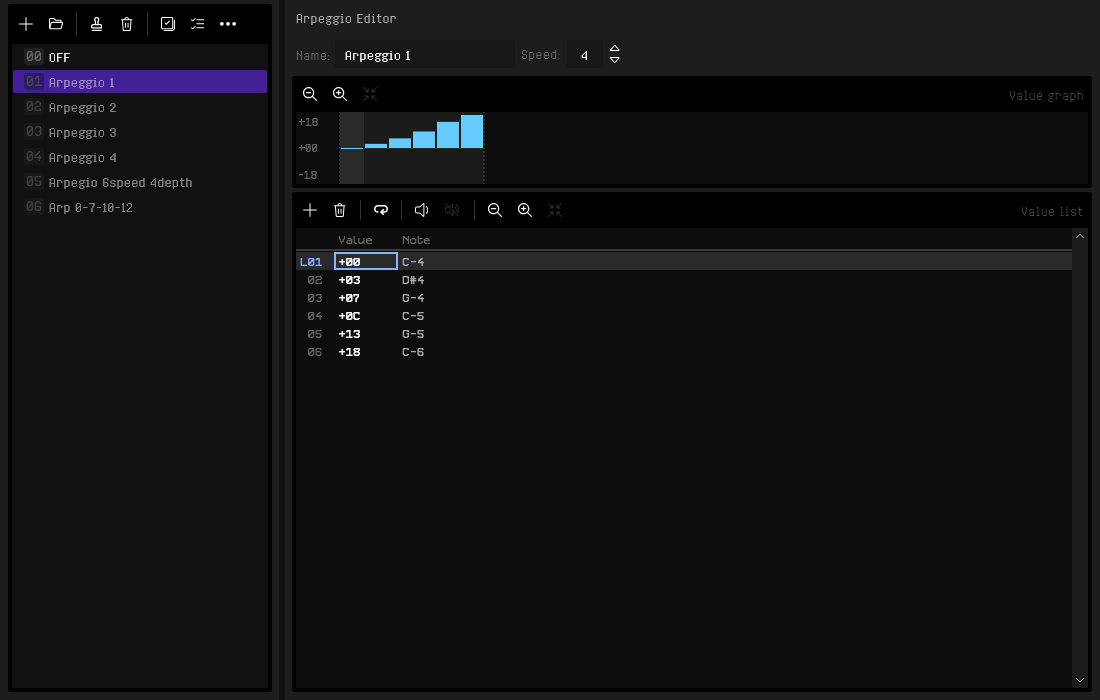
Table List
The arpeggio table list appears when the Arpeggios tab is selected.
The list starts with 00 OFF, which cannot be edited, reordered or deleted. Selecting it hides the editor because no table is applied. Your tables are numbered from 01 onward.
With OFF selected, every preview plays the plain instrument, so you can switch between a table and OFF to hear what the table adds.
While the song plays, the tables you can hear are highlighted until they stop; a muted channel's table is not highlighted. Turn the highlights off with View > Highlight Playing Items, a setting the instrument, arpeggio, vibrato, sample and wavetable lists share.
- Add Arpeggio / Add Vibrato: Create a new table (max 255), ready to play: a new arpeggio loops a major triad (
0,4,7), a new vibrato loops0, -1, -2, -1, 0, 1, 2, 1.Ctrl+Shift+Ndoes the same while the list has focus. - Open File: Load one or more
.rhvfiles and add them at the end of the list (Ctrl+Alt+L). Load-and-replace and save are on the right-click menu - Duplicate Arpeggio / Duplicate Vibrato: Clone the selected table
- Delete Arpeggio / Delete Vibrato: Remove the selected table(s). If the song plays any of them, you are asked to confirm first, since the effects playing them will be turned off.
Deletein the list does the same and keeps the focus there on the table below, so you can press it again - Select All: Select every table
- Select Unused: Select the tables no pattern row refers to
- Preview: Play the table through the selected instrument. With the OFF instrument selected it only stops whatever is playing
Drag a table to renumber it. The QNnn or QVnn effects in your patterns are renumbered too, so they keep playing the same table. One undo restores the list. Select several tables with Ctrl+click, Shift+click, Select All or Select Unused to delete or drag them together in list order.
Detail Editor
When a table is selected, its detail editor appears in the right panel:
- Name: The table's name, up to 64 characters
- Speed: How many ticks each value lasts, as an instrument's Speed does
- Insert Value (
Ins) / Delete Value (Shift+Del): Add a value of zero below the cursor, or remove the value at the cursor - Set Loop Start (
Ctrl+L): Set the loop start at the cursor row; the menu item reads Clear Loop Start when it is already there - MIDI entry (piano keys, arpeggio editor only): Play the arpeggio as a chord on a MIDI keyboard, described below
- Sort by pitch (arpeggio editor only): Whether a chord played with MIDI entry is written lowest note first or in the order you pressed the keys
- Preview / Stop Preview: Audition the table; previewing another table replaces the one playing. See 5. Main Window
Value Graph
Above the value list, a graph draws the table's values as bars, like the step graphs of the Instrument Editor: one column per value, positive values above the zero line and negative ones below.
The range, shown down the left edge, fits the table's largest value. The looping part of the table and the value under the cursor are marked.
Click a column, or drag across the graph, to move the cursor to that value and type over it. Alt+wheel over a column changes that value; add Shift for bigger steps.
To draw values, Ctrl+click a column to set it to the height you clicked, and keep the button down to draw across several values. Each change can be undone.
The zoom buttons on the graph's toolbar, or the mouse wheel over the graph, zoom its range by an octave (arpeggio) or ten (vibrato) at a time; the reset button, or selecting another table, fits the range to the table again.
Value Grid
| Column | Format | Description |
|---|---|---|
# |
2-digit hex | Value number from 01h, with L prefix for loop start |
Value |
Signed hex | Semitone offset (e.g. +03h, -0Ch) |
Note |
Note name | The note the value plays from C-4 (e.g. D#4) |
The Note column shows each value as a note, counting from C-4. For example, +00h, +04h and +07h show C-4, E-4 and G-4. A value outside the note range shows ???.
Type hex digits to edit a value, as in the instrument step grid: each digit moves the cursor to the value's next digit, so you type a value from left to right, and on the last digit further digits replace it. Typing never moves the cursor to another value; the arrow keys do that, and Enter moves down to the next value's first digit. The - key switches the sign; on a zero value, press - and then a digit to type a negative value. [ lowers the value and ] raises it, and Alt+Left goes to the value's first digit.
To move a value, or a selection, drag it by its number in the # column; the values in between shift to make room, and the loop start stays on its value. This works the same in the vibrato grid.
Undo shows the edit. Undo and redo go back to the table the edit was made in, open its tab if another one is shown, and put the cursor back on the value you edited, so you see the change. This works the same in the vibrato editor.
Playing an Arpeggio on a MIDI Keyboard
Turn on MIDI entry in the arpeggio editor's toolbar, click in the value grid, and hold a chord on your MIDI keyboard: its notes become the arpeggio, counted from C-4 and sorted from lowest to highest. Holding G-4, C-4 and E-4 makes +00h, +04h, +07h. Turn off Sort by pitch to keep the order you pressed the keys in.
Every key pressed before you let go of them all belongs to the chord, and you hear the arpeggio while you hold them. While MIDI entry is on and the value grid has focus, your MIDI keyboard writes nothing into the pattern; one undo takes back a whole chord. Anywhere else, such as in the arpeggio list or the pattern editor, your MIDI keyboard plays and enters notes as usual, so you can leave MIDI entry on. Both buttons appear only while a MIDI device is active, and MIDI entry is off each time RhYMe starts.
Making an Arpeggio from Pattern Notes
To turn notes you have written into an arpeggio, select them in the pattern editor, right-click the selection and choose Create Arpeggio from Notes. RhYMe adds a looping arpeggio table at speed 8, counted from the first note: C-4, E-4, G-4 and C-5 make +00h, +04h, +07h, +0Ch. Notes are read row by row, left to right across the channels. Note cuts and notes of achromatic instruments are left out.
The pattern does not change, so this works without Edit Mode. One undo removes the table.
Copying an Arpeggio's Notes into a Pattern
To write an arpeggio out as notes, right-click the table in the list and choose Copy as Notes. Paste into a note column of the pattern: the notes the Note column shows go one per row, starting from C-4, without an instrument. Transpose the pasted notes to start them from another note. A value beyond the range of notes leaves its row empty. The item is unavailable for a table without values or with more values than a pattern has rows.
To play a short arpeggio with an inline effect instead of the table, right-click the table and choose Copy as Effect, then paste into an effect column of the pattern. A table of three notes becomes an A effect and one of four notes a B effect: +00h, +04h, +07h becomes A47. The effect plays one note per tick, whatever the table's speed and loop. The item is available only for a table of three or four values that starts at +00h, with every other value from +00h to +0Fh and not all of them +00h.
Vibrato Editor
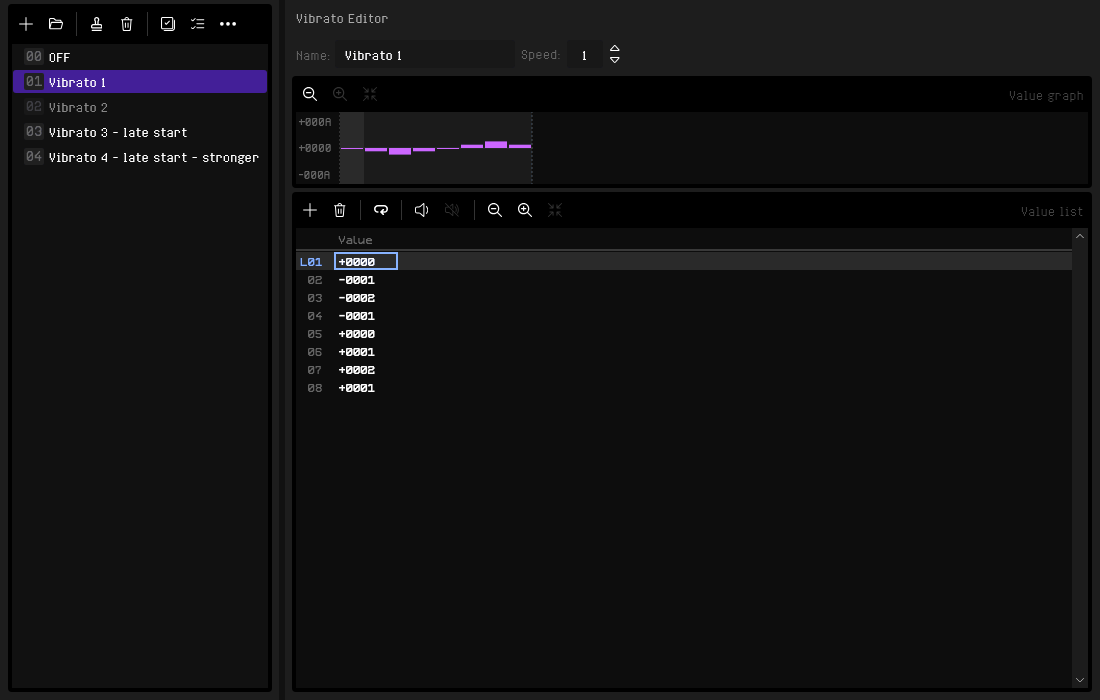
The vibrato editor mirrors the arpeggio editor, but values are tone-period deltas instead of semitone offsets.
Value Differences
| Property | Arpeggio | Vibrato |
|---|---|---|
| Unit | Semitone offsets | Tone-period units |
| Format | 2-digit signed hex (e.g. +03h) |
4-digit signed hex (e.g. +01F4h, -0064h) |
| Range | −80h–+7Fh |
−FFFh–+FFFh |
| Applied as | Semitone shift of base period | Direct delta added to period |
Using Tables in Patterns
Start a table on a channel with its corresponding effect:
| Effect | Meaning |
|---|---|
QNnn |
Start arpeggio table nn on this channel |
QN00 |
Stop the running arpeggio table |
SNnn |
Play arpeggios at nn ticks per note |
QVnn |
Start vibrato table nn on this channel |
QV00 |
Stop the running vibrato table |
Both kinds of table use the effect Q: the letter right after the Q, N for an arpeggio table or V for a vibrato table, says which kind. To switch an effect between the two, move the cursor to that second place, right after the Q, and type N or V (see Mode Letters).
A table runs at its own speed and continues across notes and patterns until you stop it or start another; a row with an instrument number starts it again from its first value. With the song's Effects mode set to Non-trailing, a table plays only on the rows that write its effect, continuing where it left off.
The arpeggio speed effect SNnn sets how many ticks each arpeggio note lasts (SN04: four ticks), for tables and for the inline arpeggios A and B. It stays in force, also for arpeggios started later, until SN00 returns to the arpeggio's own speed.
Load/Save Individual Tables
Tables can be saved to and loaded from .rhv files:
- Save: Opens a save dialog; the table name is used as the default filename
- Load into New (
Ctrl+Alt+L): Appends the loaded table to the end of the list - Replace with File… (right-click context menu,
Ctrl+Shift+L): Replaces the clicked table's data with the loaded table
A .rhv file contains a single table.