Menus & Toolbars
Main Menu Bar
An item that ends in ..., in these menus and in the context menus, asks you for something before it does its work, such as a file to open or save, or the settings of an export. An item without one does its work at once, or only shows you something, such as a reference window or the user manual.
File Menu
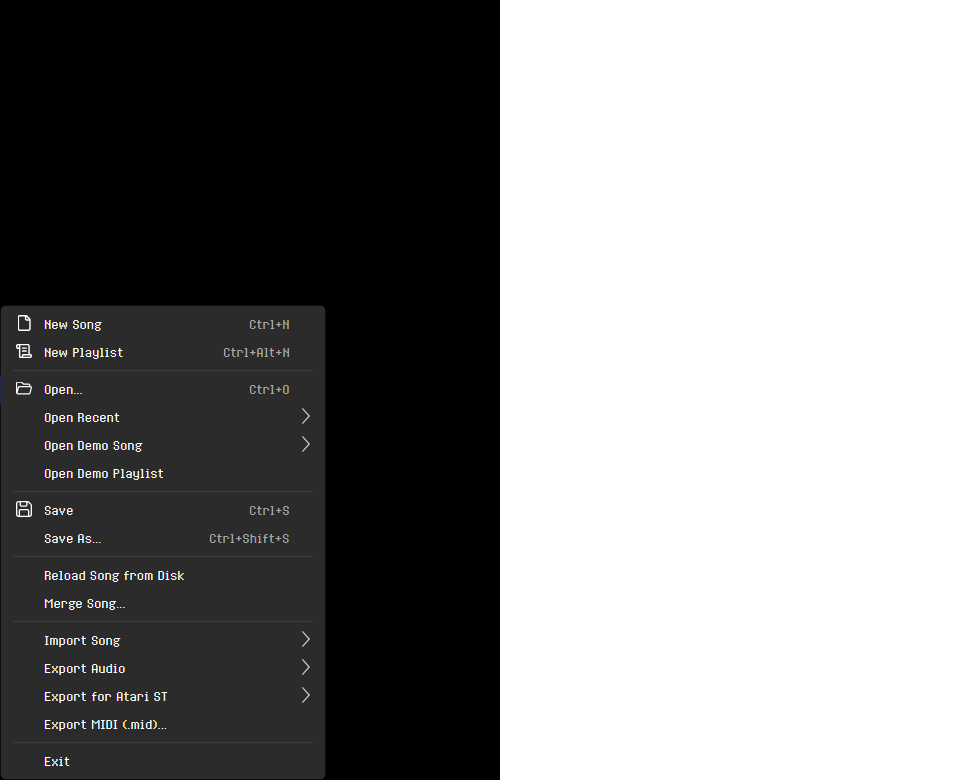
| Item | Shortcut | Description |
|---|---|---|
| New Song | Ctrl+N |
Create a new empty song. Unavailable while the current song is still a new, untouched one. Prompts to save if current song has unsaved changes. The effect matrix starts out switched off in its Song properties |
| New Playlist | Ctrl+Alt+N |
Start a playlist on the song you have open, and show it in place of the editor; see 14. Playlists |
| Open... | Ctrl+O |
Open a .rhs song file, or a .rhp playlist, which opens as a playlist |
| Open Recent | — | Sub-menu of recently opened songs, starting with Open Last Song. Clear Recent Files at the bottom clears the list. Not offered in every browser; see Opening and Saving Files |
| ↳ Open Last Song | Ctrl+Shift+O |
Reopen the most recently opened song. Available only when the current song is new and unsaved and a recent file exists; otherwise disabled |
| Open Demo Song | — | Sub-menu of the demo songs that come with RhYMe, each with its author after its title; collections appear in separate sub-menus, and songs in a sub-menu that has the author's name show only their title. The demo song you have open is checked, so you can see which one you are listening to. A demo song opens as a new, unsaved song, so saving it asks for a location and never changes the original, also when you open a demo directly from the examples folder |
| Open Demo Playlist | — | Open a new playlist of all the demo songs that come with RhYMe, in place of the editor; see Opening the Demo Playlist. Saving it asks for a location, as for a new playlist |
| Save | Ctrl+S |
Save the song. Prompts for a location if it is unsaved, or if the song is a bundled demo original. Available while the song has unsaved changes, which includes a title or name you are still typing |
| Save As... | Ctrl+Shift+S |
Save it to a new file |
| Reload Song from Disk | — | Reload the current song from its file, or a demo song from the original. With unsaved changes, offers to save them first. Not offered in every browser |
| Merge Song... | — | Add another song's instruments, samples, wavetables, arpeggios, vibratos and patterns after this song's own, with its arrangement after this song's. Identical items can be replaced by this song's own or appended as copies (see Merge Song). This song keeps its own settings, and one undo removes the whole merge |
| Import Song | — | Sub-menu: Arkos Tracker 3 Song (.aks). Starts from a new song, as New Song does, and then brings in the imported one. Prompts to save if current song has unsaved changes |
| Export Audio | — | Sub-menu: WAV (.wav, Ctrl+Shift+X) and MP3 (.mp3, Ctrl+Shift+M), the song as you hear it; see The Export Audio Dialog |
| Export for Atari ST | — | Sub-menu: SNDH Container (.sndh, Ctrl+Shift+H), Atari ST Program (.prg, Ctrl+Shift+P), YMXS Structure (.ymxs) and YM6 File (.ym), what the chip is told, for Atari ST players and programs, the YMXR tools and YM players; see 15. Exporting |
Export MIDI (.mid)... |
— | Save the song's notes as a Standard MIDI File, one track per channel; see Exporting MIDI |
How each export works, and what its dialog offers, is described in 15. Exporting.
To leave RhYMe, close the browser tab.
Opening and Saving Files
A web page can use only the files you give it, so every file goes through the browser:
- Open, Import Song, Merge Song and every other command that reads a file ask the browser for one. In Chrome and Edge this is your computer's own file dialog, so you can also open files from the cloud folders a program such as OneDrive, Dropbox, Google Drive or iCloud Drive keeps on your computer.
- Save, Save As and the exports ask the browser where to save, in browsers that let a page choose (Chrome and Edge). Other browsers download the file to your downloads folder under the name RhYMe suggests.
- In Chrome and Edge, RhYMe remembers the files you open and save, so Save writes the song back to the file you opened it from, Open Recent and Open Last Song open a file again, also after you reload the page or come back another day, and Reload Song from Disk reads the file again with any changes made to it since. The first time you save to a file you opened, and the first time you reopen a file after reloading the page, the browser asks whether RhYMe may use it. If you say no, nothing is opened, and the file stays in Open Recent for another time. Open Recent lists songs only, by their file names, without playlists.
- In other browsers, RhYMe works on a copy of the file you pick, so later changes to the file on your computer do not reach it, and the copy is gone when you reload the page; open the file again to go on with it. Each later Save of the song downloads it again, unless you chose a file with Save As. Open Recent, Open Last Song and Reload Song from Disk are not offered.
Edit Menu
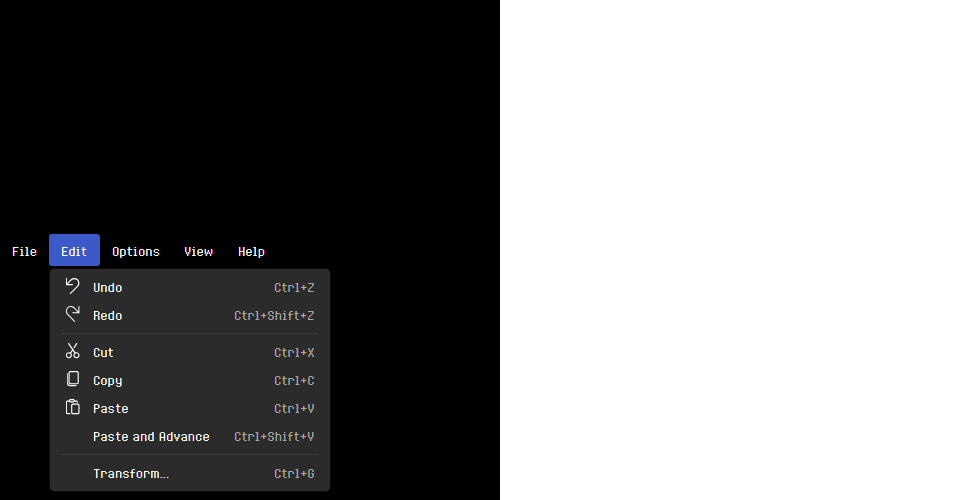
| Item | Shortcut | Description |
|---|---|---|
| Undo | Ctrl+Z |
Undo the last edit, including a title or name you are still typing |
| Redo | Ctrl+Shift+Z |
Redo the last undone edit |
| Cut | Ctrl+X |
Cut the selection in the editor that has the keyboard |
| Copy | Ctrl+C |
Copy the selection in the editor that has the keyboard |
| Paste | Ctrl+V |
Paste from clipboard, leaving the cursor on what was pasted |
| Paste and Advance | Ctrl+Shift+V |
The same paste, then put the cursor below the pasted content, spaced out by the Step when Auto-cursor advance is set to Advance by Edit Step, so a run of pastes stacks |
| Transform... | Ctrl+G |
Open the Transform dialog to stretch or compress pattern rows |
Cut, Copy and Paste act on the editor that last had the keyboard: the pattern grid, the instrument step grid, an arpeggio or vibrato grid, or the song editor. Pasting into the pattern grid needs Edit Mode; nothing else here does. Paste is unavailable when the clipboard contains nothing that editor can take, and Paste and Advance works only in the pattern grid.
What RhYMe copies can be pasted only into RhYMe, in this or another RhYMe window. What you cut can be pasted once; what you copy can be pasted as often as you like.
Options Menu
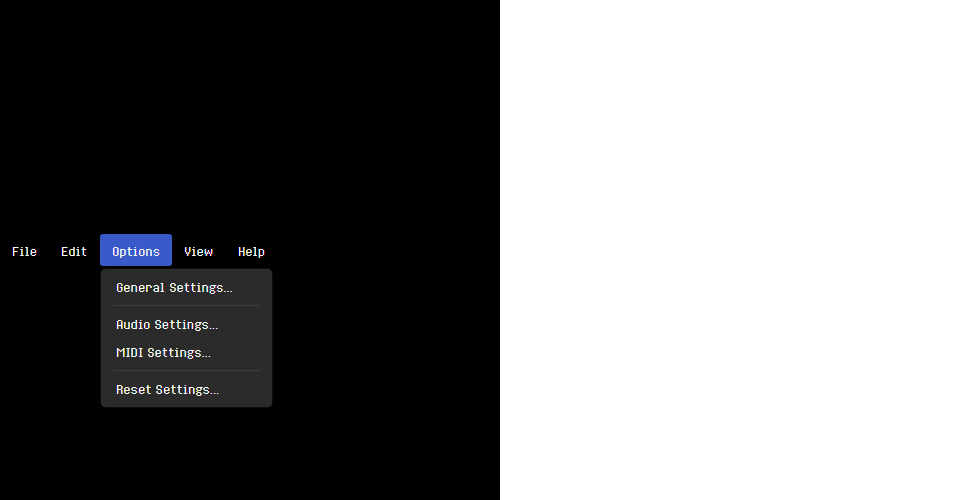
| Item | Description |
|---|---|
| General Settings... | Configure startup tips, import reports and warnings, editing, previewing, defaults for new songs and samples, song warnings and usage statistics; see General Settings |
| Audio Settings... | Configure the driver type, output device, sample rate, latency and output stage; see Audio Settings |
| MIDI Settings... | Select the MIDI input device and what your playing does to previews; see MIDI Settings |
| Reset Settings... | Choose which settings to put back to their defaults: those of the General, Audio and MIDI Settings dialogs, the toolbar toggles, the layout, the recent files and the remembered export destinations; see Reset Settings |
View Menu
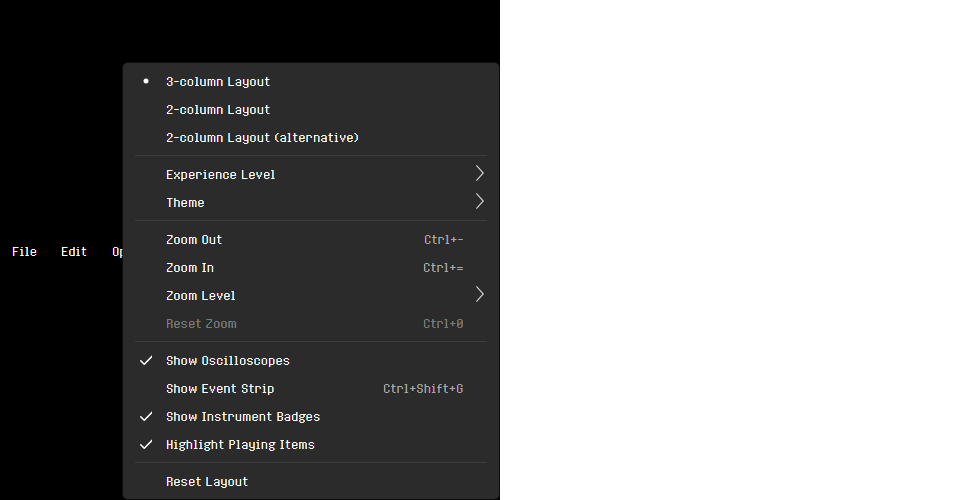
| Item | Description |
|---|---|
| 3-column Layout | Switch to the three-column layout, the default |
| 2-column Layout | Switch to the two-column layout |
| 2-column Layout (alternative) | Switch to the alternative two-column layout |
| Experience Level > Novice | Hide the advanced features, to write a first song with fewer things in view (see Experience Level) |
| Experience Level > Expert | Show every feature of the editor; the setting RhYMe starts with |
| Theme > Dark | Switch to the dark color theme, the default |
| Theme > Light | Switch to the light color theme |
| Theme > City Night Lights | Switch to the City Night Lights color theme |
| Theme > Gunmetal | Switch to the Gunmetal theme, the dark theme in steel gray with metal-looking buttons and fields and red highlights |
| Theme > High Contrast | Switch to the High Contrast theme, white text on black for the visually impaired, in colors that stay apart with color blindness |
| Theme > Modern Classic | Switch to the Modern Classic theme, which draws the interface in grays with raised buttons, after the trackers of the late eighties. |
| Theme > The Grid | Switch to The Grid color theme |
| Zoom Out | Decrease the application's UI scale by 5% |
| Zoom In | Increase the application's UI scale by 5% |
| Zoom Level | Sub-menu to pick any UI scale from 75% to 150% directly; 100% is marked as the default |
| Reset Zoom | Reset the application's UI scale to 100% (Ctrl+0) |
| Show Oscilloscopes | Show or hide the oscilloscopes of the pattern editor. The playlist's View menu has this item too, for the playlist's oscilloscopes |
| Show Event Strip | Show or hide the event strip under the song slots (Ctrl+Shift+G) |
| Show Instrument Badges | Show or hide the feature badges on instrument list items and the instrument selector |
| Highlight Playing Items | Highlight what each channel is heard on in the instrument, arpeggio, vibrato, sample and wavetable lists while the song plays, and the instrument of each note you preview; mark the steps the song plays in the instrument editor |
| Reset Layout | Restore the default layout and its panel sizes, and expand every collapsed panel |
The three layouts are described under Layout Options.
RhYMe remembers the theme you choose.
The scale runs from 75% to 150% in 5% steps. Zoom Out (Ctrl+-) and Zoom In (Ctrl+=) move one step at a time, Zoom Level jumps to any step, and Reset Zoom (Ctrl+0) returns to 100%. The editing grids have a separate font size, changed with Ctrl+wheel over a grid or with that grid's own zoom buttons.
Experience Level
View > Experience Level chooses how much of RhYMe you see. Expert shows everything and is where RhYMe starts. Novice leaves out the features and options you can write a first song without. You can also switch it from the dropdown at the right end of the status bar. RhYMe remembers your choice.
In Novice mode, RhYMe hides:
| Area | What Novice hides |
|---|---|
| Features | The arpeggio and vibrato tables, the samples, the wavetables, the effect matrix and achromatic instruments: their tabs, settings, step columns and effects (Q, Y, M and Z). The keys that open the hidden tabs do nothing |
| Timers | The timers stay, but their Timers and Timer channels settings in the Song properties are hidden |
| Context menus | The less common items, such as Paste Special, Stamp Down, Transform…, Draw Curve… and Replace Instrument…. Their shortcuts still work |
| Toolbars | The advanced toggles, including Auto-instrument, Auto-cursor advance, Stay on row in effect columns and Record OFF notes on the pattern editor toolbar |
| Zooming | The zoom buttons and Ctrl+wheel, except on the step graphs, which keep theirs |
| Song editor | The temporary loop, the tick counter, and the event strip's right-click menu, so the strip shows only its channel rows |
| Instruments | The instrument badges, including the badge filter of the instrument browser, and the instrument's key range and start delay |
| Song tab | The statistics panel, the song's tick frequency, effect columns and effects mode, the Features boxes that choose the features a song shows, and the Atari ST Exports group with the Optimize for setting and the Atari ST estimates. Back in Expert, each song shows the features its boxes allow |
| Menus | Transform… in the Edit menu (Ctrl+G still opens it), and Merge Song and the MIDI, YMXS and YM6 exports in the File menu |
| Settings | The Input tab of the MIDI settings, the Emulation tab of the audio settings, and the Previews group, the effects mode and resample rate on the Defaults tab, and the Analysis tab of the general settings, with the Warning Settings... entry of the warning menu that opens that tab |
Hidden settings keep their values and still apply, and the instrument's Parameters tab and the Song properties say when some are hidden. A song that uses hidden features still plays, saves and exports exactly as before: Novice changes only what you see. When a song or instrument you open in Novice mode uses hidden features, RhYMe lists them, except for the demo songs, and offers to switch to Expert (see Hidden Features Warning). Because hidden settings still apply, RhYMe also tells you when you switch to Novice with hidden settings that are not at their defaults, such as Auto-instrument turned off.
Help Menu
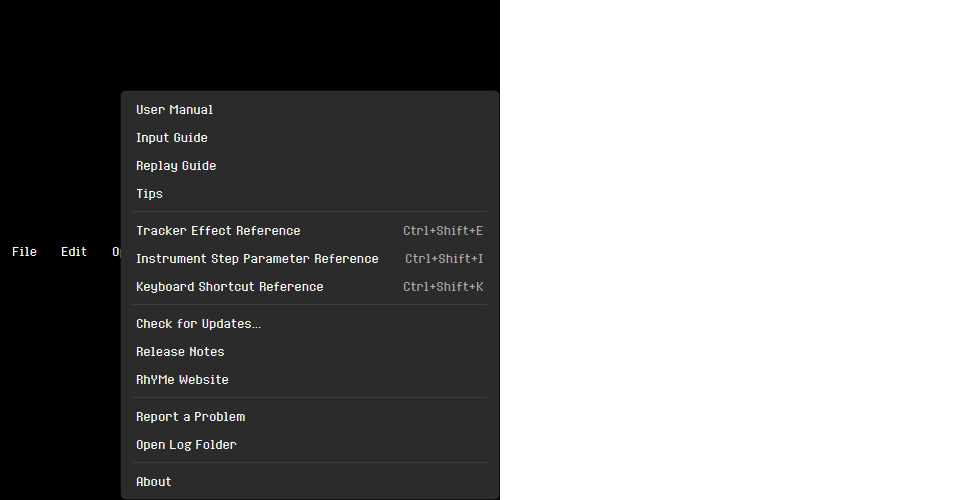
| Item | Shortcut | Description |
|---|---|---|
| User Manual | — | Open the user manual |
| Input Guide | — | Open the condensed keyboard & mouse input guide |
| Replay Guide | — | Open the guide to playing an exported song in your own Atari ST programs |
| Tips | — | Show a usage tip; browse more with Next and Previous |
| Tracker Effect Reference | Ctrl+Shift+E |
Reference window for all effect commands |
| Instrument Step Parameter Reference | Ctrl+Shift+I |
Reference window for all instrument step fields |
| Keyboard Shortcut Reference | Ctrl+Shift+K |
Searchable list of all keyboard shortcuts |
| Release Notes | — | Read the release notes for every published version |
| Report a Problem | — | Report a problem on GitHub, with your version and system filled in |
| About | — | Application version and credits |
The user manual, the input guide and the replay guide open in a new browser tab. There is no Check for Updates: the page is updated with each release.
See References for the reference windows.
Toolbars
The main toolbar, the playlist's toolbar, the toolbars above the lists on the editor tabs, the pattern editor toolbar, the instrument editor's step toolbar and the song editor toolbar keep their buttons on one row. When the window or panel is too narrow for all of them, the buttons that do not fit move to a menu behind the More button at the end of the row, and come back as soon as there is room again. A setting with arrows beside it, such as the pattern editor's Step or the main toolbar's Oct, appears on the menu with its arrows, and the menu stays open while you change it. The More button appears only when the menu has something on it.
Main Toolbar

The main toolbar runs below the menu bar. From left to right it has the file operations, the edit history, the clipboard, the instrument controls and, when there is a song to reopen, Open Last. At its right end are the Playlist button, shown while a playlist is open, and the RhYMe logo, which opens the About window. The transport buttons and playback counters are described under Playback Controls below.
The file, history and clipboard buttons do what the same items of the File and Edit menus do.
Instrument
| Button | Shortcut | Description |
|---|---|---|
| Previous / Next Instrument | Ctrl+[ / Ctrl+] |
Select the previous or next instrument |
| Instrument selector | — | Choose the instrument that notes are entered with |
| Edit Instrument | — | Show the selected instrument in the instrument editor |
| Preview Instrument | / |
Play the selected instrument at its preview pitch. The arrow beside it offers Preview Instrument Looped, which plays until you stop it (see Looped Previews) |
| Stop Preview | Esc |
Stop the preview that Preview Instrument started |
| Oct | - / = |
The octave the note keys play and enter notes in |
| Metronome | Alt+M |
Click on every beat the song or a pattern plays, louder on the first beat of each bar (see Metronome and Count-in) |
| Count-in | Alt+N |
Play bars of clicks before the song or a pattern starts. The arrow beside it chooses how many: one to four bars |
| Stop note preview on key release | — | A held note stops when its key is released. Whether live recording writes OFF notes is up to Record OFF notes on the pattern editor toolbar |
| Polyphonic previewing | — | Up to three notes sound at once, each on its own channel; when off, a new note replaces the previous one. While the song plays, previewing is one note at a time however the toggle is set |
Novice mode hides the last two toggles, Stop note preview on key release and Polyphonic previewing.
Open Last
| Button | Shortcut | Description |
|---|---|---|
| Open Last | Ctrl+Shift+O |
Reopen the song you opened most recently. Shown only while you have a new song with no changes and there is a song to reopen; the shortcut has no effect otherwise |
If you would rather not see the button, right-click it and choose Hide Open Last Button. It stays hidden until you check Show the Open Last button on the toolbar in the General Settings again. File > Open Recent > Open Last Song and Ctrl+Shift+O keep working while it is hidden. The button is shown only in browsers that offer Open Recent (see Opening and Saving Files).
Playback Controls
The transport buttons and the playback counters are on the song editor toolbar, where the song editor chapter describes the rest of that toolbar.
| Button | Shortcut | Description |
|---|---|---|
| Play Song | F5 / Shift+Space |
Play song from beginning |
| Play Song from Position | Space |
Play the song from the current song position (when stopped) |
| Play Pattern | F6 / Ctrl+Space |
Loop current pattern |
| Play from Cursor | Shift+F7 / Ctrl+Shift+Space |
Play from cursor position; while something is playing, switches it to this mode |
| Pause | F7 / Alt+Shift+Space |
Hold the playing where it stands; press again to resume |
| Stop | F8 / Esc / Space |
Stop playback, a held song or a preview |
| Position counter | — | Current playback time (m:ss.ff) / total duration |
| Tick counter | — | Total number of ticks elapsed from the start of the song to the current position |
The play buttons are disabled when no audio device is available. Pressing Play from Cursor while something is playing switches it to Play from Cursor without a break, so a looping pattern is let out of its loop.
Play Pattern from Cursor (Shift+F6, or Play Pattern from Cursor in the pattern grid's context menu) has no toolbar button. It plays the current pattern from the cursor row and loops it, going back to the pattern's first row after its last. Pressing it while something is playing moves playback to the cursor row and loops that pattern.
Pause stops the sound but keeps the playing row marked; press it again to resume from exactly there, with the sounding notes carrying on. A play button starts over instead, and Stop ends the pause.
Toolbar Toggles
Each toggle on the toolbars, and each option in the view menus they open, is remembered across sessions. To put them all back as they were when RhYMe was installed, choose Options > Reset Settings..., check Toolbar toggles and click Reset (see Reset Settings). This resets the toggles of the main toolbar, the MIDI toolbar, the pattern editor toolbar and its view options, the instrument editor's step toolbars, the song editor's event strip, the playlist's pause between songs and the arpeggio editor, where MIDI entry is turned off.
Unless you check them as well, the settings you choose in the General Settings, Audio Settings and MIDI Settings dialogs are not changed. The layout, the theme, the zoom, the View menu's items, Edit Mode and the playlist's play buttons are never changed.