Exporting
Export your song in seven formats from the File menu:
| Export | Menu item | What it writes |
|---|---|---|
| WAV | File > Export Audio > WAV (Ctrl+Shift+X) |
The song as you hear it, as a WAV file. See The Export Audio Dialog |
| MP3 | File > Export Audio > MP3 (Ctrl+Shift+M) |
The song as you hear it, as an MP3 file |
| SNDH | File > Export for Atari ST > SNDH Container (Ctrl+Shift+H) |
The song packaged with a replay routine as a self-contained Atari ST tune, for SNDH players and real hardware |
| PRG | File > Export for Atari ST > Atari ST Program (Ctrl+Shift+P) |
The song packaged with a replay routine as a program you run directly on an Atari ST or emulator. See Running an Exported Atari ST Program |
| YMXS | File > Export for Atari ST > YMXS Structure | The song as the YMXR tools are given it, to read, edit or pack later. See Exporting a YMXS Structure |
| YM6 | File > Export for Atari ST > YM6 File | What the chip is told on every frame, for YM players. See Exporting a YM6 File |
| MIDI | File > Export MIDI | The song's notes as a Standard MIDI File, one track per channel. See Exporting MIDI |
A playlist's own menu offers the SNDH Container and Atari ST Program exports as well, exporting every song in the playlist as one file; see 14. Playlists. Novice mode leaves the YMXS, YM6 and MIDI exports out of the File menu.
Where an Export Is Written
If you press Export without a destination, RhYMe opens the file chooser. Choose a destination to continue, or cancel to return to the dialog.
For each song and export format, RhYMe remembers the last destination and offers it next time. To forget every destination RhYMe has remembered, for all songs and playlists, choose Options > Reset Settings..., check Remembered export paths and click Reset. Each export then asks where to write the file again. Your export settings are kept.
An empty song cannot be exported: while the song plays nothing, because its arrangement is empty or every slot plays an empty pattern, the export entries in the File menu are unavailable and their shortcuts do nothing. Add notes to a pattern the arrangement plays to export it.
Before writing, RhYMe may ask you to confirm; see Export Confirmations. When an export has finished, the dialog shows Export complete.
You always choose the output file with the browse button: the box beside it shows only the file's name and cannot be typed into. The file is saved where you chose once the export has finished, or downloaded in browsers that do not let a page choose.
Pressing Export stops whatever is playing, including a song the playlist is playing, since the sound would stutter while the export runs.
Export Confirmations
RhYMe asks for confirmation in two cases:
| Question | When it is asked |
|---|---|
| Replace the file? | A file already exists at the destination, and you did not just pick it in the file chooser |
| Export without the unsaved changes? | A playlist song open in the editor has unsaved changes. A playlist export reads each song from its file, so save the song first to include them |
If the export would also replace a file, the unsaved-changes question says so. Export (or Enter) exports, and Cancel (or Escape) returns to the export dialog without writing anything.
Stopping an Export
During export, the dialog shows progress and an Abort button. An aborted export leaves no file behind. The dialog stays open so you can change settings and try again.
While an export runs, Close, the window's close button and Escape wait for it to finish.
Options Saved with the Song
The options you choose in the Export Audio, SNDH Container, Atari ST Program, MIDI and YM6 dialogs are saved in the song, so the song exports the same way each time you open it, even on another computer. Each song keeps its choices, so exporting one song with other options does not change how the next one exports. The destination is not saved in the song, since a folder on one computer may not exist on another, and neither is the output stage of the Export Audio dialog, which Audio Settings uses for playback as well.
A song that has no saved options yet, such as a new song or one saved with an earlier version of RhYMe, opens each dialog with the options you chose last for any song.
When you close a dialog after changing its options, the song counts as changed, so save it to keep them. Edit > Undo does not change the options: it takes back your last edit to the song, as before the export. To go back to the default options, use Reset in the dialog. A dialog closed without a change leaves the song as it was. While the playlist replaces the editor, the SNDH Container and Atari ST Program dialogs export every song in the playlist, so their options are not saved in any song.
Resetting a Dialog's Options
To put a dialog's options back to how they were when RhYMe was installed, press Reset beside Export. This happens at once, without asking, and the next export opens with the default options too. The destination stays as it is. In the SNDH Container and Atari ST Program dialogs, it also resets the player and packing settings. In the Export Audio dialog, the output stage is not changed, because it is the same setting that Audio Settings uses for playback. The YMXS export has no options, so its dialog has no Reset button. Reset is unavailable while an export runs.
The Export Audio Dialog
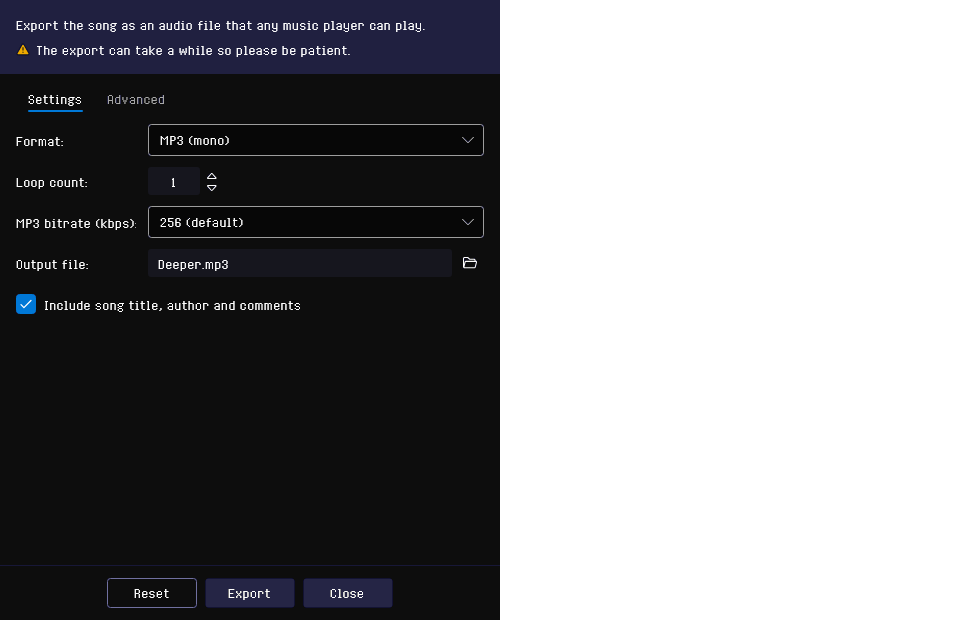
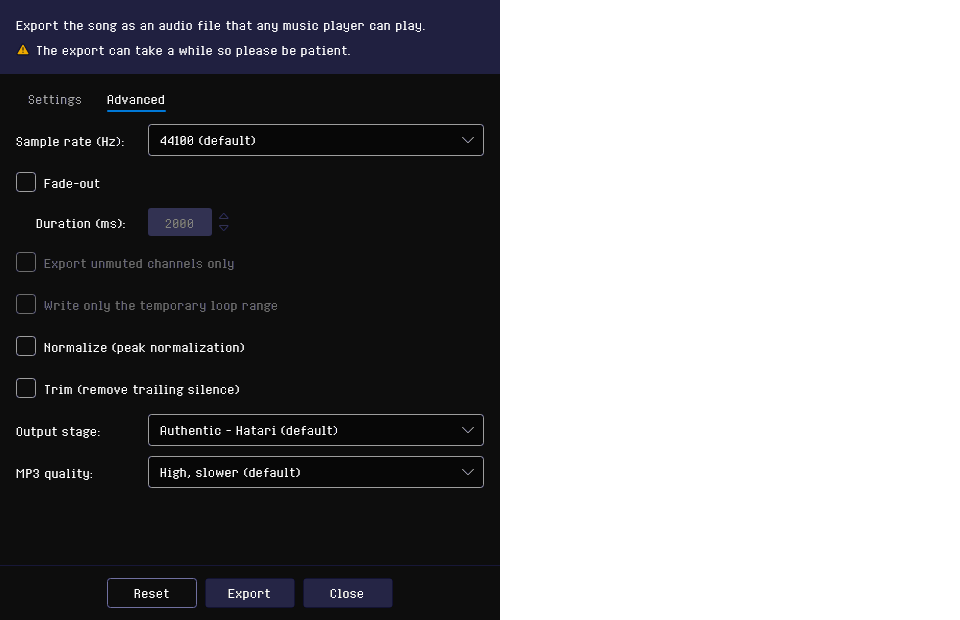
The Settings tab has what every export needs: the format, the loop count, the MP3 bitrate, the output file and Include song title, author and comments, so you can see whether the song's details go into the file. The Advanced tab has the rest: the sample rate, the fade-out and its duration, Export unmuted channels only, Write only the temporary loop range, Normalize, Trim and the output stage.
At the top, the dialog says what the export does and warns that it can take a while. Let it finish, even if the window does not respond for a moment, especially in the browser.
An MP3 has a sample rate of at most 48000 Hz, so 96000 is offered only for WAV, and a higher WAV rate becomes 48000 when you switch to MP3.
With Include song title, author and comments on, a WAV or MP3 file includes the song's title, its author as the artist, and its comments, so a music player lists it by name; an MP3 also includes the composer. Fill these in in the song's properties before you export; empty ones are left out.
Exporting Part of a Song
An export plays the song as written, so muted channels are still heard in the file. To leave them out, for example to export one part on its own, mute or solo channels and turn on Export unmuted channels only on the Advanced tab. It shows which channels it keeps, and is unavailable when no channel is muted. It is off each time you open the dialog, so an export never drops a channel you forgot was muted.
Write only the temporary loop range exports the looped section instead of the whole song, with the volume and effects the song has reached at its start. The loop count sets how many times the section plays. The option shows which song positions it will export; it is unavailable until you set a temporary loop in the song editor.
Exporting MIDI
Export MIDI writes your song's notes as a Standard MIDI File (.mid) that almost any music program can open. Only the notes are exported, not the sound: the receiving program plays them with its own instruments.
Three checkboxes, all off by default, decide how much of the song is included:
- Include volume sets each note's velocity from its volume and follows volume changes through the note, so fades and volume slides are kept.
- Include effects turns arpeggios, vibrato, portamento and pitch slides into pitch bend.
- Voice per instrument gives each channel the voice of the instrument its notes use: instrument 1 becomes the receiving program's first voice, instrument 2 its second, and so on, and instruments past its last voice use the last one. Off, every channel plays a square lead.
Include volume and Include effects make the export take longer. With all three off you get a plain note dump.
Each channel becomes a separate track, and the whole song plays at one tempo worked out from the song's speed. Pattern breaks (D) are followed, so rows that RhYMe does not play are left out of the file too. Speed changes and rows lengthened or shortened with O are not included, so such a song drifts from what you hear in RhYMe. Samples and noise are exported as plain note pitches.
What the Atari ST Exports Report
The SNDH Container and Atari ST Program exports hand your song to the YMXR tools, which write the file. The dialog shows what the tools report, a line at a time, including any warnings. Between them, RhYMe says which step the export is on: each song as it is converted, each tool as it starts and how many seconds it took, and the second pack with ICE!, so a long export shows that it is still under way. If an export fails, the last line says why, and nothing is written.
An SNDH file includes the first song's title and author, and names RhYMe as the program it was made with, so an SNDH player can show them. With several songs, each one's title names its subtune.
These exports can take a while, and the window may not respond during parts of them, most of all in the browser, so the dialogs warn of this beneath their description. Let the export finish: the report and the progress bar catch up once the window responds again.
As the dialog opens, RhYMe estimates your song as the export writes it, whether or not you have estimated it on the Song tab, and shows what it finds in a box at the top of the dialog, beneath the description: a warning for each problem, such as a song with more waves than a tune can contain. When it finds nothing to warn of, the box goes away. When the export will not work for your song, the box says so first, above the reasons: fix those before you export. While it works, a spinner shows in the box. For a playlist, each warning begins with the file name of the song it is about. The YMXS Structure dialog checks the song the same way.
Some songs play in RhYMe but not on an Atari ST, and the export refuses them before the tools start:
- A timer faster than 125,000 ticks a second. A sample played far above its base note or stored at a very high rate, or a wavetable on a high note, can need more than the machine can serve. The message gives the song, position, pattern, row and channel, and the rate needed. Play it lower, resample the sample to a lower rate, or give the wavetable fewer levels.
- More than 127 waves. A song that plays more than 127 different samples, PWM levels and envelope shapes on its timers is refused, with the number of waves it plays. The editor warns of this while you edit, on the Song tab and in the pattern editor's warning menu, and the export dialog warns of it as it opens. Each wavetable counts once for every volume it is played at, and so does a sample that follows the volume; playing them through volume transformations, with the Optimize for setting in the song's properties brings the number down.
The report stays in the dialog after the export, as one block of text: select any part of it, or press Ctrl+A for all of it, and press Ctrl+C to copy. These dialogs, and the YMXS Structure dialog, can be resized to show more of the report.
Playing an exported song in your own program
Help > Replay Guide opens a short guide on playing an exported song in your own Atari ST program, in assembly or GFA BASIC, and on how to credit the replay routine.
Player and Packing
The SNDH Container and Atari ST Program exports have an Advanced section with settings for the YMXR tools, in two groups: Player, with the replay clock and lean timer ticks, and Stream Packing, with the packing unit, the unpacking buffer and packing with copies. Their defaults are suitable for most cases, and the two exports share them. The SNDH Container export also has a File Packing group there, with Pack even if larger (see Pack the File). The section closes when an export starts, so the report has room to show what the export says.
- Replay clock chooses what calls the tune once a frame: Timer C or the Vertical blank. Automatic chooses Timer C, unless your song's effects use Timer C or the CPU load is shown. The vertical blank runs at 50 Hz only on a PAL color monitor, so a program that plays from it plays too fast on a monochrome monitor or at 60 Hz; Automatic therefore plays a program from Timer C whenever it can. In the SNDH Container export, see Force play from VBL below. Timer C cannot be chosen for a song whose effects use it, and a program plays from the vertical blank only at 50 Hz; the export says so and writes nothing. With Automatic, a song whose effects use Timer C is exported only at a tick frequency of 50 Hz, since the vertical blank cannot play it at any other rate. Before anything is packed, the export checks whether the song's effects use Timer C where the player needs it, and if they do it stops, names the song and suggests clearing T-C in the song's properties.
- Lean timer ticks uses a replay routine whose timer interrupts cost less, which helps most with samples and other fast timer effects. While the tune plays, it sets the Atari's timer chip to end its interrupts by itself, and restores it afterwards.
- Packing unit and Unpacking buffer: larger pieces unpack faster, and a larger buffer usually makes the file smaller, but the tune needs more memory as it plays. With Auto selected, as it is at first, the export tries several buffer sizes and keeps the one that makes the tune take the least memory; select Custom to pick a size yourself.
- Pack with copies usually makes the file smaller again, for slightly slower unpacking.
To put these settings back to their defaults, press Reset beside Export.
Pack the File
The Pack the file checkbox in the SNDH Container export packs the finished file once more as a whole, with ICE, which usually makes it noticeably smaller. Players unpack ICE themselves, so the file plays as before. If packing would not make the file smaller, it is written unpacked with a warning in the report, unless you also check Pack even if larger, under File Packing in the Advanced section. That checkbox is available only while Pack the file is checked. The dialog remembers both settings.
The Atari ST Program and YMXS Structure exports do not offer this, since a program has to be able to run itself. The Atari ST Program export can pack the program with UPX instead.
Pack the Program with UPX
The Pack the program with UPX checkbox in the Export Atari ST Program dialog packs the finished program with UPX, which usually makes it a good deal smaller. A packed program unpacks itself when it starts, so it runs and plays exactly as before. If packing would not make the program smaller, it is written unpacked with a warning in the report. The dialog remembers the setting.
The browser version cannot run UPX, so it does not offer this.
Force Play from VBL
Your song's effects use Timer D once Timers A and B are busy or not allowed in the song's properties. The Force play from VBL checkbox in the SNDH Container export, cleared at first, has such a song use Timer C instead, so Timer D stays free for the program that plays the file. The tune then plays from the vertical blank, since Timer C is no longer free to call it. This applies only while Replay clock is Automatic and the tick frequency of every exported song is PAL, since the vertical blank plays a tune at that rate; the report says which songs were changed. A song whose effects never use Timer D, or already use Timer C, plays as before. Check it when the program that plays the file needs Timer D; leave it cleared for a player that expects Timer C. The checkbox is unavailable while another replay clock is chosen. The setting is saved with the song, and Reset clears it again.
Show CPU Load While Playing
The Show CPU load while playing checkbox in the Export Atari ST Program dialog adds a load meter to the program. Colored bands down the screen border show how long each part of the replay routine runs: purple for the work done once per frame, and red, green and cyan for the three timers. The taller the bands, the more of the machine your song uses.
Leave it off for a program you give to others: the meter covers the display, and the file is slightly larger. The setting is saved with the song.
The meter costs time too: every timer interrupt does extra work to color the border. A song that plays many samples or timer effects at once can fit the Atari ST without the meter and not with it, and then the program plays slower than it should at those moments. Where your song would, a warning beneath the checkbox says how much of each frame the heaviest moment needs and how far into the song the program first falls behind. Leave the meter off to hear the song at its speed.
The meter is available only when the song ticks at 50 Hz, or, for a playlist, when every song in it does. For a song at any other tick frequency the checkbox is unchecked and unavailable, and its tooltip says why.
Running an Exported Atari ST Program
Double-click the exported PRG file on an Atari ST or an emulator to start it. Press Space or Escape to stop it and return to the desktop.
A program with several songs lists them on screen, each with its number and title, and marks the one playing. Use the arrow keys to move through the list, or type a song's number (for song 13, type 1 then 3). Give your songs titles before exporting a set, since the list shows them.
A song that plays once hands over to the next one when it ends, and the last to the first; a song that repeats plays on. A program with a single song falls silent at its end and stays open, so you can start the song again.
The song plays at the speed you wrote it at, even on a 60 Hz machine or a monochrome monitor.
Where an Exported Song Starts Over
A song with an arrangement loop point repeats from there, and the SNDH Container, Atari ST Program and YMXS Structure exports keep that: the patterns before the loop point play once as an intro. A song without a loop point plays once and stops.
An effect still running at the loop point, such as a PWM or an envelope synchronization, is restarted there, which you will not hear. A sample still playing at the loop point, such as a drum struck on the last row of the intro, plays on from where it has got to, so every pass of the loop sounds like the first.
Exporting a YMXS Structure
YMXS Structure writes your song as the YMXR tools receive it, before packing: the rows of the song, what each one sets on the chip, and the effects and samples the timers play. It is a text file you can read or change, and give to the YMXR and YMXS tools yourself later.
The export is quick. The file is checked like the other Atari ST exports, and a song the check refuses is not written. The report shows the steps of the export as in the other Atari ST exports, and lists what RhYMe left out, what the check found, and the size of each song and of the file; you can copy it as in the other Atari ST export dialogs. A song with more than 127 waves is still written here, with a warning.
Exporting a YM6 File
YM6 File writes your song as a YM6 file, the format most YM players and music collections use: what the chip is told on every frame, with the song's samples and timer effects. It sounds as the song does in RhYMe, and repeats from the loop point, or from the beginning when the song has none.
Group by register stores the file in the order nearly every YM6 file uses, which packs much smaller; leave it on unless a player requires otherwise. The file itself is written unpacked.
A YM6 file cannot contain everything RhYMe plays, and the dialog lists what your song loses before you export it:
- Two timer effects at a time. Where all three channels play a sample, PWM or envelope effect at once, one is left out for that frame; samples are kept first.
- Thirty-two samples. A sample past the thirty-second plays as the wrong one.
- No looping samples. A sample always plays once.
- No sample offsets. A sample moved with
MorZ, or by a step's Ofs column, plays on as if it had not been moved. - No samples following the volume. An instrument's sample set to follow the volume plays at full level.
- No wavetables. Wavetables are not heard.
- PWM drops to silence. A PWM step's PWM volume is lost, so the square plays at its full depth.
A sample always plays to its end, even where RhYMe cuts it short with a new note, by silencing its channel or by muting the note with KM.