Main Window
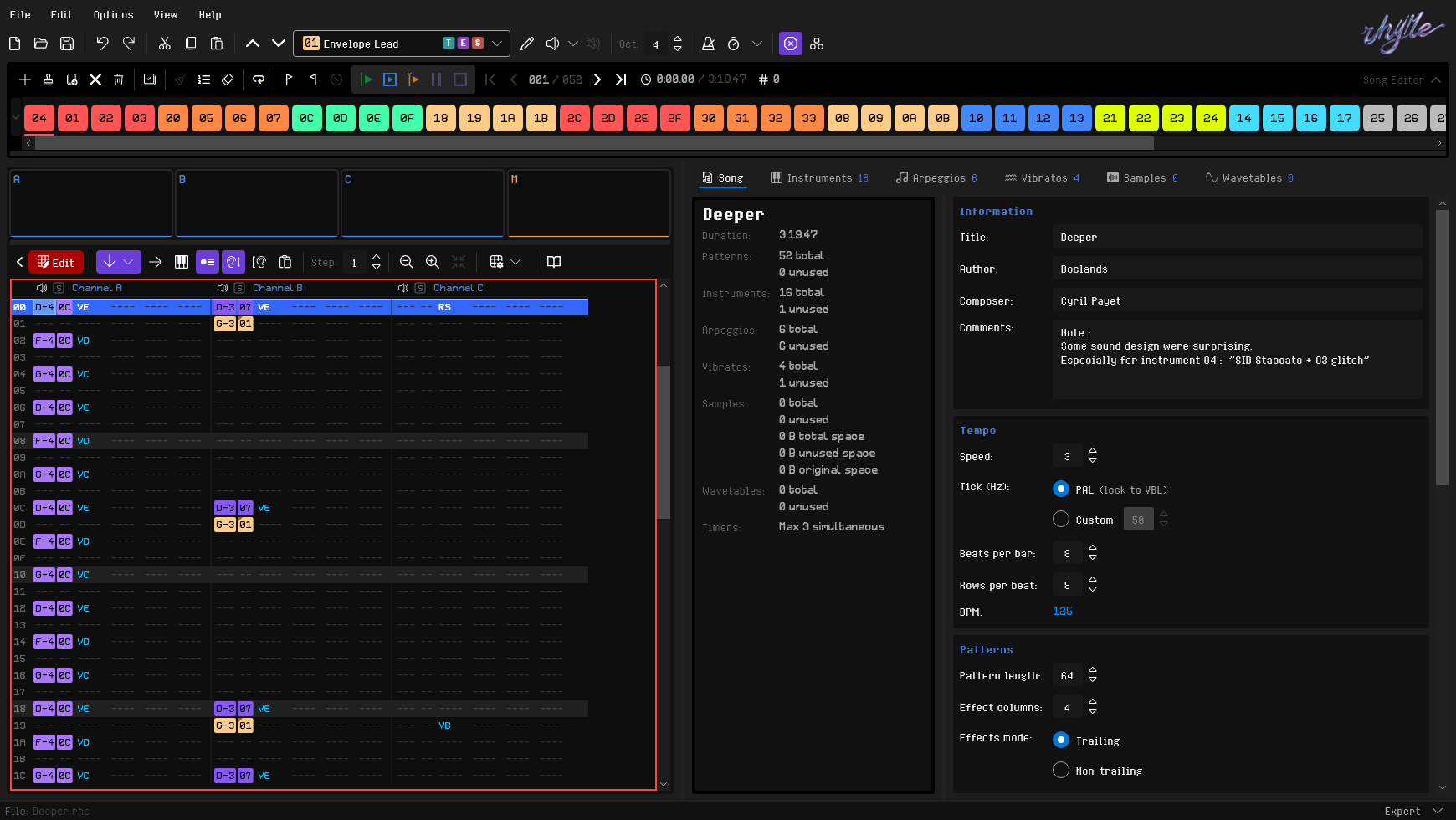
The window title shows what you are working on: the song's file name, or the playlist's name while its list is showing. When the song's title is different from its file name, the title follows in parentheses, as in draft.rhs (My Song). A song you have not saved yet shows its title. An asterisk at the start of the window title means there are unsaved changes; while a playlist is showing, it refers to the playlist.
Layout Overview
Menu Bar
At the top of the window, the menu bar provides access to file operations, editing commands, options, view layouts, and help references. See 16. Menus & Toolbars for a complete walkthrough.
Main Toolbar
The main toolbar, below the menu bar, has the file buttons, Undo and Redo, the clipboard buttons, the instrument controls (instrument selector, preview buttons, octave stepper and preview toggles) and, when there is a song to reopen, Open Last. At its right end is the Playlist button, while a playlist is open. See Main Toolbar for every control.
The transport buttons and playback counters are on the song editor toolbar, not the main toolbar.
One preview at a time
RhYMe plays one preview at a time: starting another replaces it, and any Stop Preview button stops it, whichever tab started it. With Polyphonic previewing on, notes you play can sound up to three at once while the song is stopped.
/ previews the selected item of the tab that is showing, and notes you play preview through that tab. Holding / down plays the preview once, as holding a note key plays its note once. Previewing the OFF instrument or sample plays nothing and stops the running preview; with the OFF arpeggio or vibrato you hear the plain instrument, a quick way to compare a table against the dry sound.
Song Editor
Below the toolbar, the song editor shows the song's arrangement as a row of slots, each with the hex number of the pattern it plays. The event strip, an overview of the whole song, can be shown below it. See 7. Song Editor for details.
Three-Column Layout
The main work area uses a three-column layout (configurable via the View menu):
- Left column — The pattern editor grid where you enter notes, instruments, and effects across three channels (A, B, C), with the oscilloscopes above its toolbar and, while a MIDI device is active, the MIDI toolbar below the grid
- Middle column — A tab strip for Song, Instruments, Arpeggios, Vibratos, Samples and Wavetables, with the song's title and statistics or the selected tab's list below. Each tab but Song shows how many items it contains.
⌘1to⌘6open the tabs in that order, wherever you are working; hover over a tab to see its number - Right column — A detail editor for the selected tab: song properties, instrument step sequencer, arpeggio/vibrato editor, sample editor, or wavetable editor
Vertical splitters between the columns let you resize each panel. Double-click the splitter beside the pattern editor to make the pattern editor exactly as wide as the pattern grid, giving the rest to the columns on the right.
The column widths are remembered for the next time you start RhYMe.
A collapse toggle at the left edge of the pattern editor toolbar, or ⌘P, collapses the left column to a thin strip and gives its width to the other columns; click the strip to restore it. See 6. Pattern Editor for details.
Status Bar
A bar at the bottom of the window shows the active file, the experience level at its right end and, for a few seconds, a warning.
| Indicator | Meaning |
|---|---|
| File: | Filename of the loaded song |
| Warning | Shown for a few seconds after a key you played sounded nothing, or sounded without its timer effects |
| Expert ▾ | Choose Novice or Expert from this dropdown, the same choice as View > Experience Level |
The warning appears when you play a key, on the computer keyboard, the on-screen piano or a MIDI keyboard, that is outside the key range of its instrument (see Instrument Editor). The key sounds nothing, and the warning says which note it was and what the range is, for example C-5 is outside the key range of instrument 01 (C-4 to B-4).
It also appears when you preview an instrument with timer effects while the song's Timers or Timer Channels settings leave the channel it plays on without a timer. The note sounds, but without its timer effects, and the warning says which settings are the reason.
An unsaved song shows as (unsaved).
Right-click the file to copy its path to the clipboard, for example to paste it where an export should be saved. A song that has never been saved has no path to copy.
Layout Options
The View menu offers three layout configurations:
- 3-column Layout (default): Tabs and lists in the middle column, detail editor on the right
- 2-column Layout: Tabs and lists in the right panel above the detail editor, pattern grid on the left
- 2-column Layout (alternative): Tabs and lists above the pattern grid on the left, detail editor on the right
Song Tab
The Song tab (left of the Instruments tab) is split into two panels: the song's title and statistics on the left, and its properties on the right.
Statistics
The left panel shows the song title (hover it to read a long one) and statistics that update as you edit:
| Statistic | Format | Description |
|---|---|---|
| Duration | m:ss.ff |
Total song duration |
| Patterns | X total / Z unused |
How many patterns the song has, and how many of them the arrangement never plays |
| Instruments | X total / Z unused |
How many instruments the song has, and how many of them no note uses |
| Arpeggios | X total / Z unused |
How many arpeggio tables the song has, and how many no QNnn effect uses |
| Vibratos | X total / Z unused |
How many vibrato tables the song has, and how many no QVnn effect uses |
| Samples | X total / Z unused / space |
How many samples the song has and how many no instrument or Y effect uses, then the space all of them take and the space the unused ones take, and what all of them took before processing, for comparison |
| Wavetables | X total / Z unused |
How many wavetables the song has, and how many no instrument step uses |
| Timers | Max N simultaneous |
The most channels that need a hardware timer at once anywhere in the song (see below) |
Timers counts the channels the way the event strip's timer graph does:
- A channel needs a timer while its instrument uses a timer or plays a sample with its notes, or while a sample it triggers plays.
- A sample that finds every timer busy is not heard, but still counts for as long as it would have played.
- A timer keeps running from the row that starts it until its effect ends, so timers started on different rows count together.
- A channel kept off the timers with Timer channels is not counted.
- The figure is worked out by playing the song through shortly after you stop editing.
The Timers setting decides how many timers there are to share, four at most.
Song Properties
The right panel contains the song's properties in six groups, each in a separate panel: Information (title, author, composer and comments), Tempo (speed, tick frequency, beats per bar, rows per beat and the resulting BPM), Patterns (pattern length, effect columns and Effects mode), Features, Timers (the Timers and Timer channels settings) and Atari ST Exports (see Atari ST Exports). The Timers group is hidden while the song's Timers feature is off.
The title, author and composer are up to 32 characters each and the comments up to 1,024; the boxes take no more. To have every new song start with your name as author or composer, set Author and Composer on the Defaults tab of the general settings.
Novice mode hides the Features, Timers and Atari ST Exports groups, the tick frequency, Effect columns, Effects mode and the statistics panel; a notice at the top of the tab says that some properties are hidden and how to show them.
The tick frequency is PAL or Custom. PAL, the default, ticks at 50.0527 Hz, the rate of a PAL Atari ST; the note beside it, (lock to VBL), says that the song then ticks once per VBL, as on the real machine, so playback, the duration, the BPM and the audio exports match the real machine. Custom ticks at the whole number of hertz you set, from Timer C, the 200 Hz clock the Atari ST player calls such a song from; Custom at 50 Hz plays about 0.1% slower than the machine. A rate that divides 200, such as 50 or 100, ticks evenly. Any other rate ticks as unevenly as it does on the machine, since each tick waits for the next tick of the 200 Hz clock: at 60 Hz the ticks last 20, 15 and 15 ms in turn, and above 200 Hz some ticks follow straight after the one before. The Atari ST exports always specify 50 Hz.
Beats per bar sets how many beats make one bar: 4 to begin with, or for example 3 for a waltz. The pattern editor highlights the first row of every bar more strongly than the other beats. It is saved with the song and leaves the BPM as it is.
Rows per beat sets how many rows make one beat: 4 to begin with. The pattern editor highlights the first row of every beat, counting from each pattern's first row, and the BPM counts a beat as this many rows, so at the same speed a song of 8 rows per beat shows half the BPM of one of 4. It is saved with the song, and the MIDI export writes this many rows as one quarter note.
Effects Mode
The Effects mode setting chooses how long effects last in the song, in the modern or the classic tracker tradition (see 1. Introduction). It is saved with the song; to start every new song in your preferred mode, set Effects mode on the Defaults tab of the general settings.
Trailing is the default. An effect that would normally continue (A, B, E, F, G, H, I, J, L, N, Q, SI, SN, T, U, W, Z) keeps running on the rows below the one you wrote it on until something stops it, and a value of 000h on pitch down (E), pitch up (F), the semitone bends (I, J) or the portamentos (G, L) repeats the last value you used with that effect.
Non-trailing confines those effects to the row you write them on, so write an effect again on every row it should keep running. On E, F, G, I, J and L, 000h still repeats the last value: write F300 once, then F000 on each row below to keep the bend going. Effects that already apply only once (D, M, O, P, RS, RY, RZ, SS, V, XL, XX, Y) behave the same in both modes.
In Non-trailing mode, an effect that was building something up leaves its result behind:
- A pitch bend or semitone bend keeps the pitch it reached, a volume slide the volume, and portamento its target, so writing one of these on consecutive rows still sounds continuous.
- The volume an effect leaves behind lasts until the next note on that channel, which brings the channel back to full volume. Sliding into a note with portamento does not count as a new note.
- Arpeggio, vibrato and the value tables return the note to normal when they stop, but remember how far they had gone, so writing one again on the next row continues the figure. A value table only continues when you use the same table.
- Instrument speed (
SInn) and arpeggio speed (SNnn) return to the instrument's or the arpeggio's own speed, and writing one again on the next row continues from where it is rather than restarting. - A reset (
RS) clears these memories. A freeze (RZ) keeps them.
Features
The Features boxes (Timers, Arpeggio tables, Vibrato tables, Samples, Wavetables and Effect matrices) switch parts of the editor on or off for the song. A cleared box switches its feature off in the editor: its tabs are dimmed and cannot be opened, and its other settings and columns are hidden. A new song has all of them checked except Effect matrices, and an imported song has the boxes of the features it does not use cleared. Clearing a box does the following:
- Timers hides the Timer group of the instrument steps, in the step grid and the step graphs, and the whole Timers group below.
- Arpeggio tables dims the Arpeggios tab, and Vibrato tables the Vibratos tab.
- Samples dims the Samples tab and the instrument editor's Sample tab.
- Wavetables dims the Wavetables tab, and hides the wavetable column of the instrument steps and the timer's wavetable mode.
- Effect matrices dims the instrument editor's Effects tab, which contains the effect matrix.
A dimmed tab cannot be opened, and its shortcut does nothing. Hover over it to see where to switch the feature on, or right-click it to switch the feature on or off (see Feature Tabs). The Song tab hides the disabled feature's counts. Switching a feature off removes nothing from the song. A feature in use by a pattern or instrument cannot be switched off; a wavetable in use also keeps Timers on. Each change can be undone and is saved with the song.
Timers
The Atari ST has four timers, A, B, C and D. An effect that needs one (PWM, envelope synchronization, envelope volume modulation, a wavetable, a sample or an instrument's own sample) takes a timer for as long as it sounds, so a song can sound as many of these at once as it has timers.
When two timers run out at the same moment, the Atari ST serves the one with the higher priority first and the other waits a moment. A PWM is the effect where that delay is heard most, as a rougher sound, and a sample or wavetable the one where it is hardly heard. So RhYMe gives a PWM, envelope synchronization or envelope volume modulation the free timer with the highest priority, starting with Timer A, and a sample or wavetable the one with the lowest, starting with Timer D, which keeps Timer A free for a PWM that starts later. Timer C is used last by every effect, unless Timer C by priority is checked.
The boxes T-A, T-B, T-D and T-C beside Timers set which timers the song may use. T-A, T-B and T-D are checked to begin with. Clear one to leave that timer free for whatever plays the export, such as a demo counting scanlines or a game keeping its own clock. The remaining timers are shared as the song plays, so even with one box checked the effects still run, one at a time. An effect that starts while every checked timer is in use plays without it until one is free again, and then starts part way through its note; a sample that finds no free timer is skipped instead.
T-C is clear to begin with, because Timer C is the Atari ST's system clock, which most players, SNDH players among them, play a tune from; the warning mark beside it is a reminder. Check it only when the song will be played from the vertical blank or from another timer.
Timer C by priority, beneath the boxes, can be checked while T-C is checked. It lets effects use Timer C in its place in the Atari ST's order of priority, between Timer B and Timer D, so it is used like the other timers instead of only when they are all busy.
The song uses Timer C only when every other checked timer is busy. An SNDH file whose effects use Timer C is set to be played from the vertical blank, so such a song can be exported to SNDH or as a program only at a tick frequency of 50 Hz, unless Replay clock is set to Vertical blank for an SNDH file. The export checks this before it starts packing and names the song.
When every allowed timer is busy, a channel plays its note without the timer: PWM does not gate the volume, envelope synchronization does not restart the envelope, envelope volume modulation rises once and falls silent, and a wavetable, sample or instrument sample is not heard. The Timers statistic shows how many timers the song needs at once.
When the song needs more timers at once than the boxes allow, a warning beneath them says how many it needs and has, and the editor marks every row where it happens (see Warnings). RhYMe checks this by playing the song through, a moment after you stop editing; while it does, a spinner shows beside the Timers heading.
Timer Channels
The boxes Ch-A, Ch-B and Ch-C beside Timer channels set which channels may run an effect that needs a timer; they are the pattern's channels, not the timers. All three are checked to begin with.
Clear one when whatever plays the export uses that channel itself, such as a game playing its sound effects on channel C. A cleared channel never takes a timer, so its timer effects sound as they do when every timer is busy, and it does not count toward the timers the song needs.
When the song starts a timer effect on a cleared channel, a warning beneath the boxes says which channel, and the editor marks every row where it happens. Move the effect to another channel, or check the box again.
Both settings are saved with the song and apply to playback in RhYMe as well as to the Atari ST exports.
Atari ST Exports
The Atari ST player cannot turn a sample down, so the Atari ST exports keep a copy of each wavetable, and of each sample an instrument plays while following the volume, for every volume the song plays it at. A tune can contain at most 127 samples, wavetables and copies together, so a song with many of them can run out.
Optimize for offers another way: a volume transformation is a small table the player reads a sample or wavetable through on its way to the chip, turning it down without a copy. A sample or wavetable played through volume transformations is stored once, whatever volumes it is played at, but every value it plays costs the Atari ST a little more time, and the player is about 9 KB larger. So the setting trades memory against the Atari ST's processor time: it is a slider of four steps, from Size (less memory) on the left to Speed (less work for the Atari ST) on the right, with the name of the step beneath it:
| Setting | What the export does |
|---|---|
| Smallest file | Plays a sample or wavetable through volume transformations wherever that makes the whole file smaller. The larger player costs about 9 KB, so a song with few copies switches none, and the file can shrink at the cost of a lot of extra time on the Atari ST. |
| Favor smaller file | Balances the two toward a smaller file: takes up to two thirds of the extra time Smallest file would, on the samples and wavetables that save the most for the time they cost. |
| Favor lower CPU usage | The default. Balances the two toward less work: the same, but up to a third of the extra time. |
| Least CPU usage | Keeps a copy at every volume, as long as the song fits in 127 waves. |
Whatever the setting but Least CPU usage, a song that would use more than 127 waves first plays just enough samples and wavetables through volume transformations to bring it under, starting with the ones that save the most waves for the least extra time.
The export report lists each sample and wavetable that plays through volume transformations, and why. Playback in RhYMe is not affected.
When the estimates find that the song uses more waves than a tune can contain, a warning at the bottom of the estimates says how many it uses and how many of them are volume copies, and suggests another Optimize for setting, so you find out before an export is refused (see Estimates). Choose any setting but Least CPU usage and click Update until the warning goes. The Atari ST export dialogs also check the song for it whenever they open.
The setting applies to every sample and wavetable in the song alike. Each change can be undone and is saved with the song.
Estimates
Beneath Optimize for, under Estimates, the group shows what the Atari ST exports write for the song, worked out by playing it through. Working the figures out takes a few seconds for a long song, so RhYMe only does it when you ask: click Estimate beside Estimates. While it works, the button is disabled and shows a spinner. The estimates are not always accurate enough to rely on: the only way to be certain is to export the song.
Until you click Estimate, only the CPU usage is shown, since it follows every change you make. Once the song has been estimated, the button reads Update. When you change the song afterwards, the figures stay, dimmed, and a line beneath the button says they are out of date: click Update to work them out for the song as it is now.
At first only the total RAM, the CPU usage of the heaviest frame and the file sizes are shown: check Detailed to show the rest, which is what the memory consists of, the waves, the volume transformations and the rest of the CPU figures.
| Estimate | Format | Description |
|---|---|---|
| RAM | ~S total / parts |
About how much memory the song takes on an Atari ST once exported as an SNDH file with the default settings, and what takes it (see below) |
| Waves | N of 127 (max) / copies |
How many waves the Atari ST exports write, out of the 127 a tune can contain, and how many of them are volume copies (see below) |
| Vol. transf. | N, pages / cycles |
Shown only while the song plays samples or wavetables through volume transformations: how many it uses, the memory they take, and how much extra work they give the Atari ST each frame |
| CPU | N% max / min / 99th |
How much of each frame the player takes on the Atari ST over the whole song: in the heaviest frame, in the lightest frame, and within 99 frames in 100. There is no average, since lighter frames do not make up for one that takes too long |
| SNDH file | ~S |
About how large the SNDH file is that the export writes with the default settings |
| PRG file | ~S |
About how large the Atari ST program is that the export writes with the default settings |
RAM splits the memory between:
- the samples and wavetables
- the extra copies of them made for the other volumes the song plays them at
- the volume transformations, when the song uses any
- the rest: the player and the song's rows. A song with an instrument that switches wavetables synchronized needs a larger player, about 4.5 KB more.
The Atari ST player cannot turn a sample down, so every volume a sample or wavetable is played at is stored as a copy, and a sample that follows the volume costs a copy for each volume it is played at. Volume transformations avoid the copies. The rows are only packed when you export, so their share is an estimate. For a song the Atari ST exports refuse, it reads Not available.
Waves counts the waves the SNDH and program exports write for the Atari ST player to play: every sample and wavetable once for every volume it is copied at, or once for every place it starts from when it plays through volume transformations, and every PWM level and envelope shape a timer effect plays. A tune can contain at most 127, so past that the warning beneath the estimates appears, and the SNDH and program exports refuse the song. It comes from the same estimate as RAM, so after moving the Optimize for slider, click Update to see how far the setting brings the song back under.
CPU is the same estimate the song editor's CPU load graph draws, including the extra work of the volume transformations, so moving the Optimize for slider shows at once what it costs. The sizes are rounded to whole kilobytes.
Playlists
A playlist is an ordered set of songs, such as the soundtrack of a game, saved as a .rhp file and published as one SNDH file or Atari ST program. While one is open, the Playlist button on the main toolbar shows its list in place of the editor, and the Song button on the playlist's toolbar brings the editor back. See 14. Playlists.