Your First Song
In about ten minutes, you can create a short tune, save it and export it as a WAV file. This guide works in either experience level and uses the instrument included in every new song.
Start a New Song
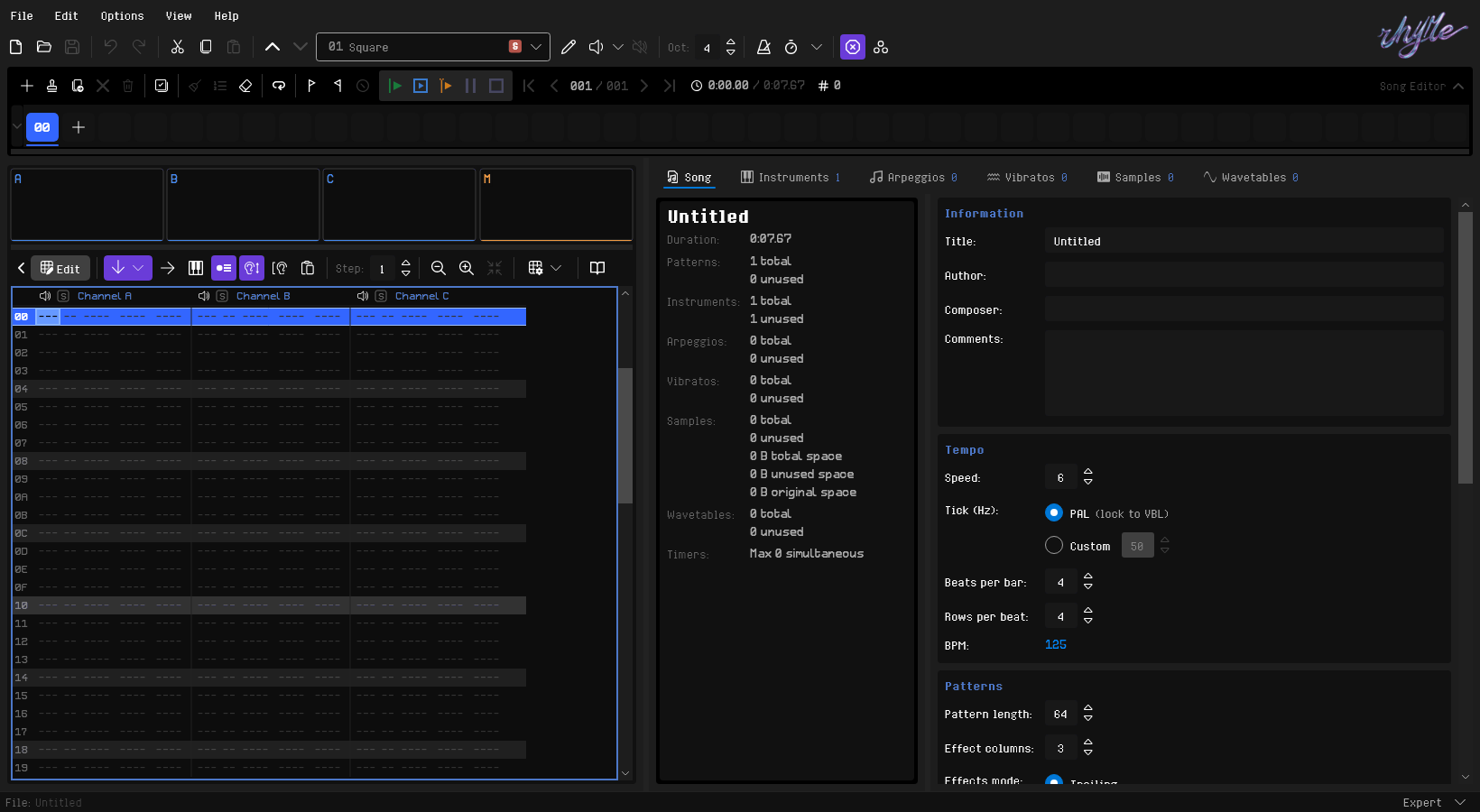
RhYMe opens with a new, empty song. If another song is open, choose File > New Song or press ⌘N.
A new song has one 64-row pattern in the song editor and one instrument, "Square".
Write a Melody
- Click the pattern grid, or press
F9, to put the keyboard on the pattern editor. - Press
↩to turn on Edit Mode. - With the cursor on the first row of channel A, type a few notes with the bottom row of letter keys: Z is C, X is D, C is E and so on up to M, which is B. The row above, S, D, G, H and J, gives the sharps.
Each note is written with the selected instrument, and the cursor moves down one row, so a note on every row plays a quick run. To leave room between notes, move the cursor down with the arrow keys before you type the next one. To end a note before the next one starts, enter an OFF note (===) with ⇧O.
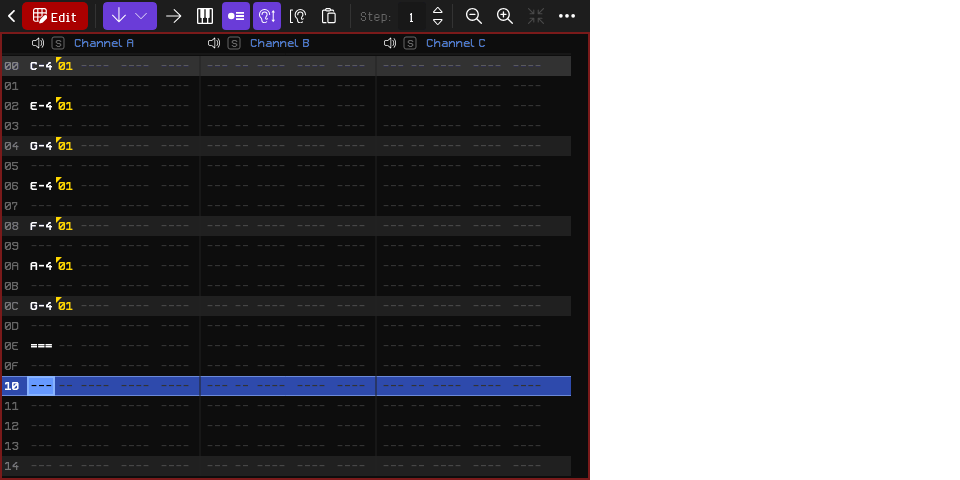
Press F6 to hear the pattern loop, and F8 to stop it. Made a mistake? ⌘Z undoes it.
Changing octave
The bottom row of letter keys plays the octave shown as Oct on the main toolbar, and the row of keys from Q to U the octave above it. Press - or = to lower or raise the octave.
Add a Bass Line
- Press
⇥to move to channel B. - Press
-once or twice to go down an octave or two. - Go back to the first row with
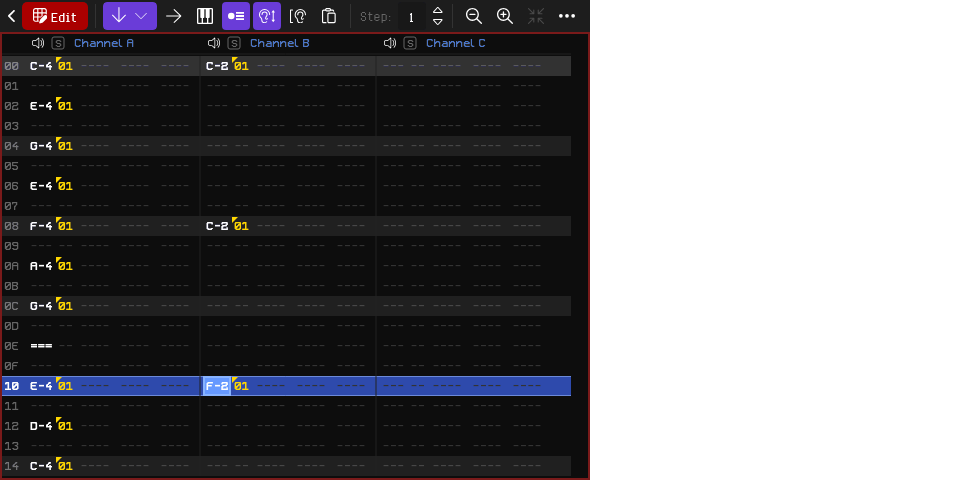
↖and type a slower line, a note every four or eight rows.
Press F6 again: both channels now play together. Channel C is free for a third part, such as a chord note or a counter melody.
Add a Second Pattern
A song consists of patterns played in order. Press ⇧⌘N to add an empty pattern after the current slot. The pattern editor switches to the new pattern.

Write a second part in the new pattern, the way you wrote the first. To start from a copy of the first pattern instead, select its slot in the song editor and press ⇧⌘D, then change what you like in the copy.
Arrange the Song
The song editor at the top of the window plays its slots from left to right. Click a slot to show its pattern in the pattern editor.
- Drag a slot to move it to another place in the song.
- Select a slot and press
⌘Dto play the same pattern again after it. - Select a slot and press
⌫to take it out of the song.
For example, the order 00, 00, 01, 00 plays the first pattern twice, the second one, and the first one again. Press F5 to play the whole song from the start, and F8 to stop.

Name and Save the Song
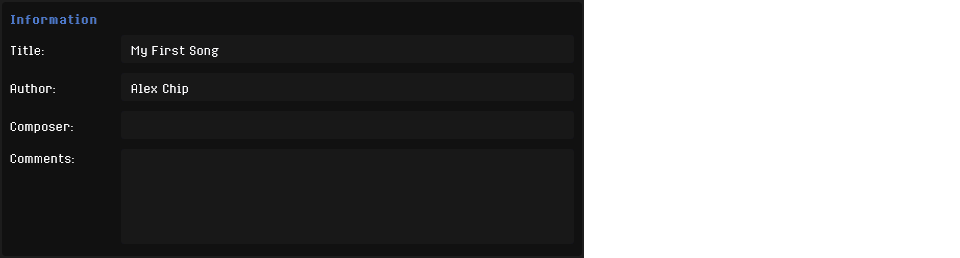
Click the Song tab and type the song's title, and your name as its author, under Information.
Press ⌘S to save. The first time, RhYMe asks where to save the .rhs file. Open it again with File > Open.
Export a WAV File
- Choose File > Export Audio Stream > Waveform Audio, or press
⇧⌘X. - Choose where to write the file with the folder button beside the output file.
- Press Export.
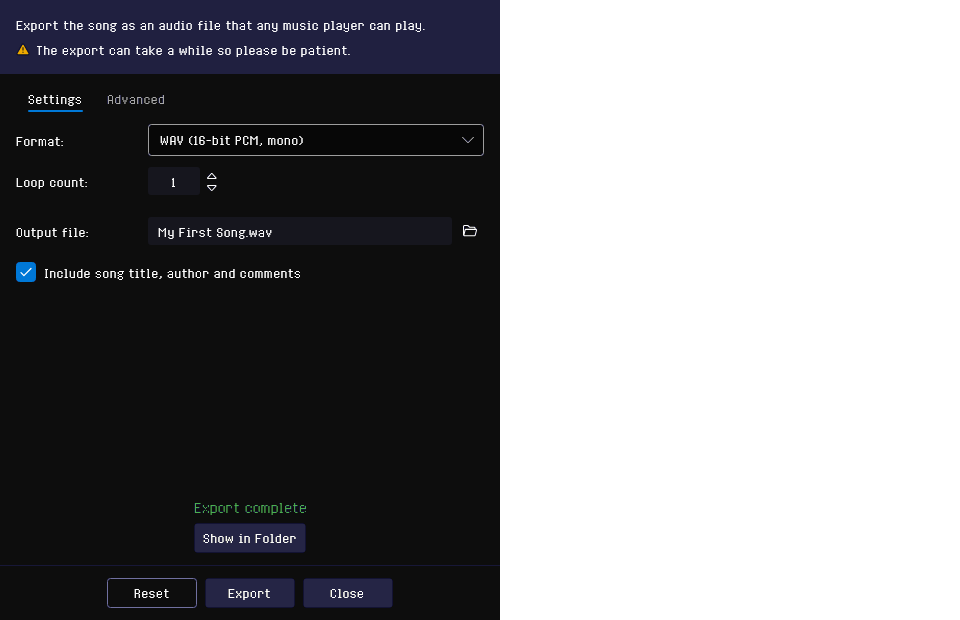
When the dialog shows Export complete, the WAV file is ready to play in any music player. With Include song title, author and comments on, as it is at first, the file includes the song's title and author, so a music player lists it by name. See The Export Audio Dialog for the other settings, and 15. Exporting for the other formats, such as a program that plays your song on an Atari ST.
Where to Go Next
- Shape your own sounds in the 9. Instrument Editor, or follow the examples in 10. Creating Instruments.
- Add effects such as slides and vibrato to the pattern; see Effects.
- Find ready-made instruments with Browse Standard Library on the instrument list's toolbar (
⌥⌘K). - Open a demo song from File > Open Demo Song to see how a full song is put together.